Access
Web App | Windows | Mac Sketchup | Mac Vectorworks or ArchiCAD
SketchUp Mac Update Instructions: Updating Veras for SketchUp on Mac
SketchUp Mac First Install Instructions: Installing Veras for SketchUp on Mac
Vectorworks Mac Install and Update Instructions: Getting Started with Veras for Vectorworks
ArchiCAD Mac Install and Update Instructions: Getting Started with Veras for ArchiCAD
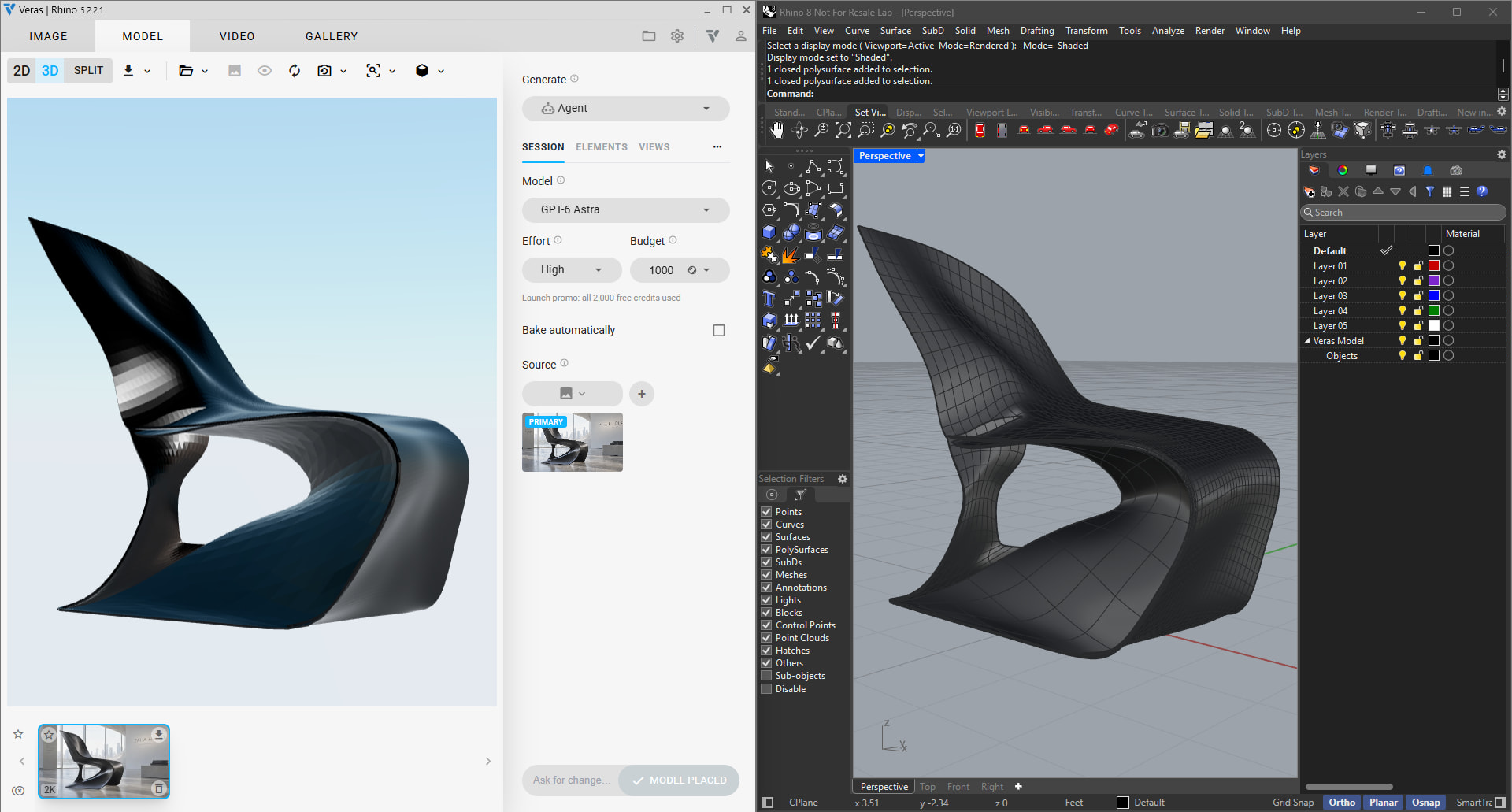
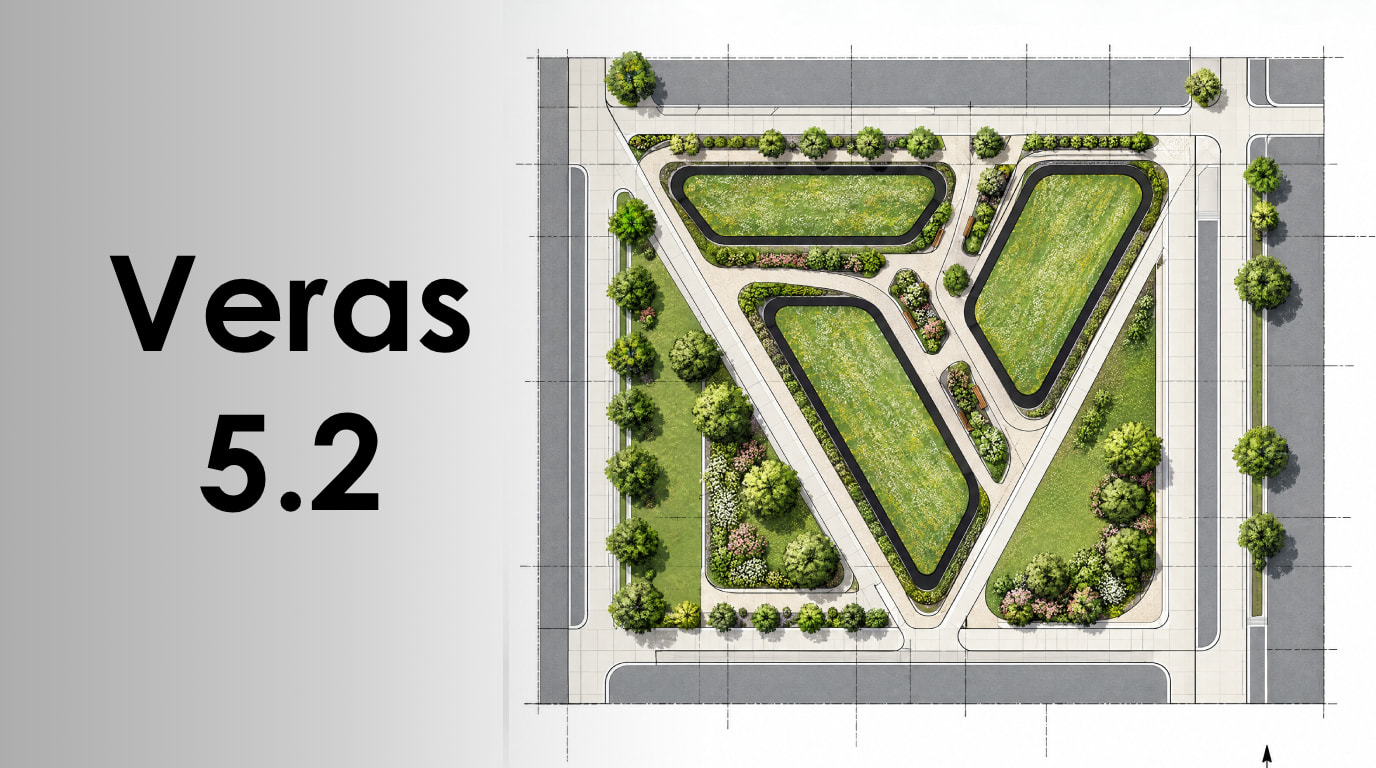
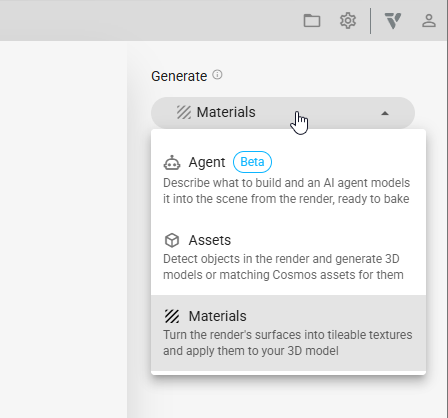
Veras 5.0 introduced the MODEL tab, and 5.1 made its assets lighter and faster to work with. Veras 5.2 adds the biggest change yet: an AI agent that creates 3D objects from your images and bakes it into Revit, Rhino and SketchUp as native, editable geometry. The release also makes Material Gen available to everyone and adds walk-through navigation to the 3D view.
 Agentic Modeling — From Image to Native Model
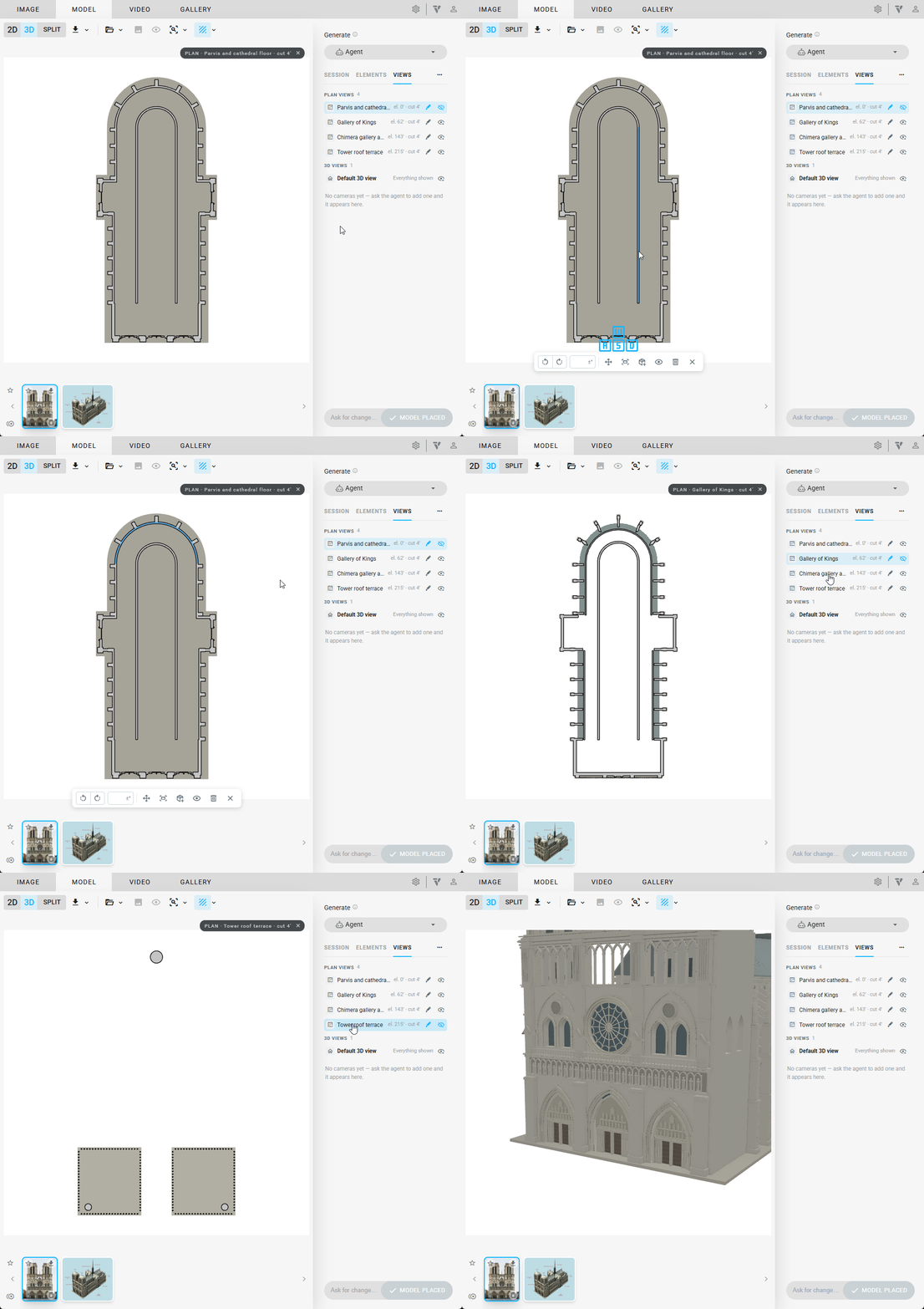
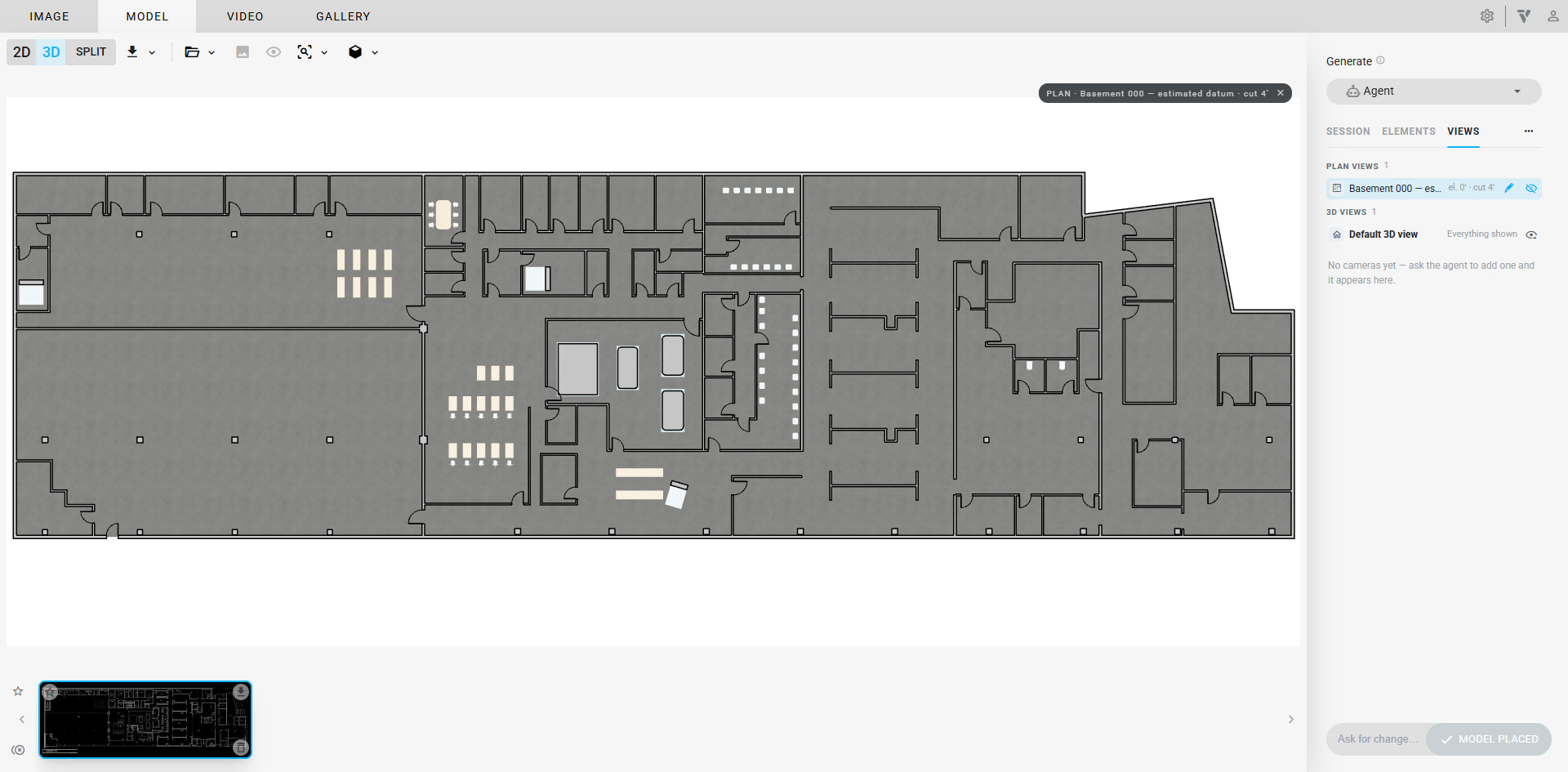
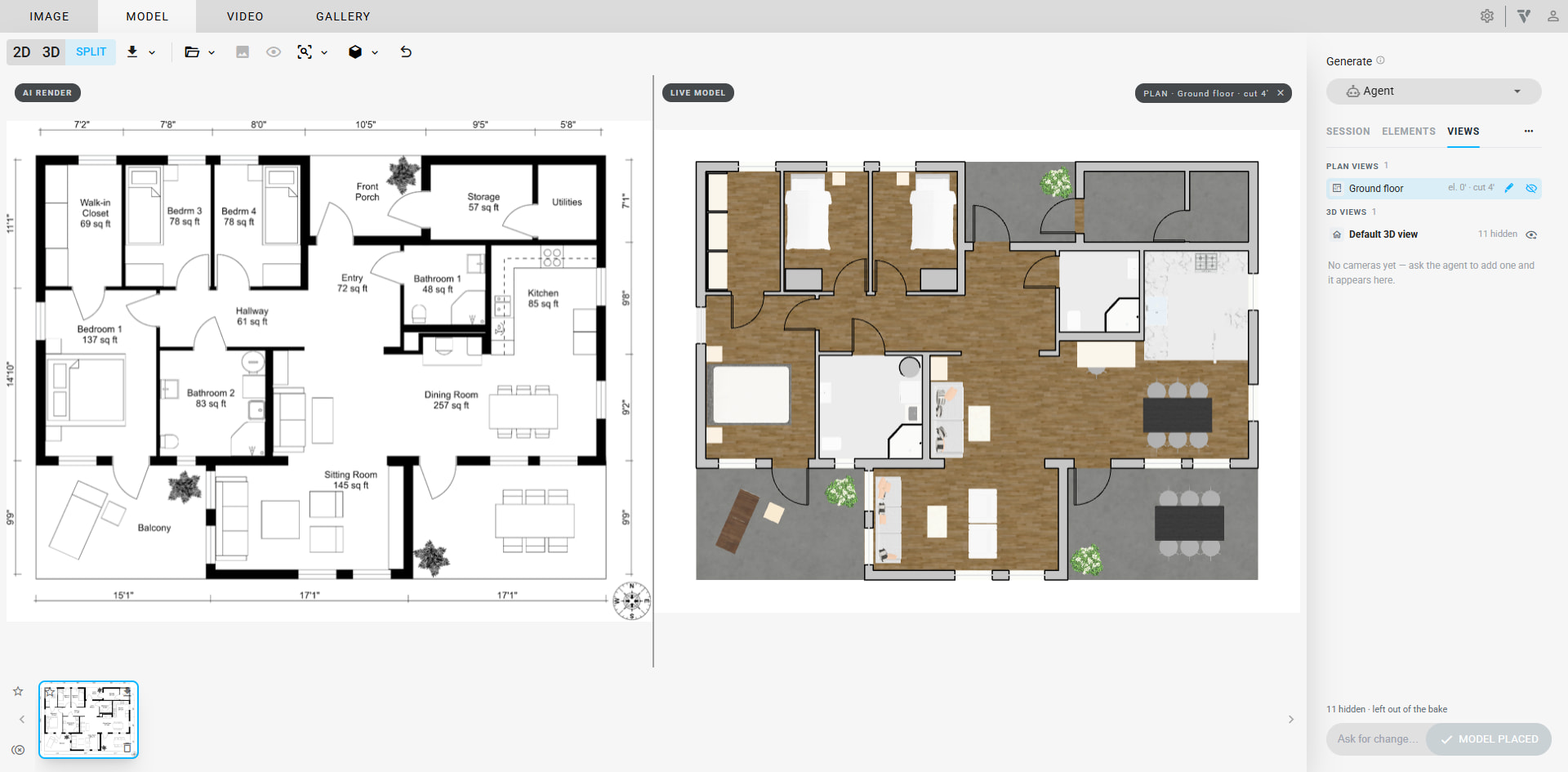
Agent is a new mode on the MODEL tab, and the tab now opens on it. Give the agent a rendering, a photo or a sketch, describe what you want, and it builds a 3D model of the building. It works step by step: it models, looks at the result, compares it against your images and corrects what doesn’t match.
- Real building elements, not a mesh. The agent places walls, floors, roofs, openings, doors, windows, cameras and furniture. It can also build curved walls, tilted and swept solids, profiles and section roofs, and cut openings through solids.
- Walls join cleanly. Corners mitre, T-junctions are trimmed, and walls of different heights butt against each other.
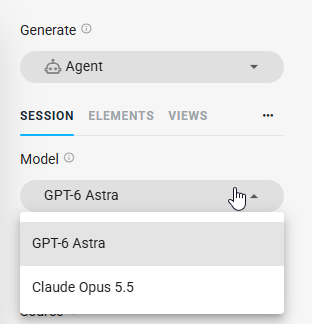
- Choose the model. GPT-6 Astra (the default) or Claude Opus 5.5, with an effort setting that trades speed for thoroughness.
- Up to 12 source images. Renderings, uploads, the host view and 3D viewer snapshots can all go in. The agent treats each one as a numbered view it can check its work against, and an image you send is saved as a rendering in your workspace.
- Guesses are flagged. When the agent has to assume something it can’t see, the element gets a ? marker, and hovering over it shows what was assumed.
- Talk to it while it works. A message sent during a run is queued and delivered at the next step. You can pull a queued message back to edit it. Stop pauses the run and Continue resumes it.
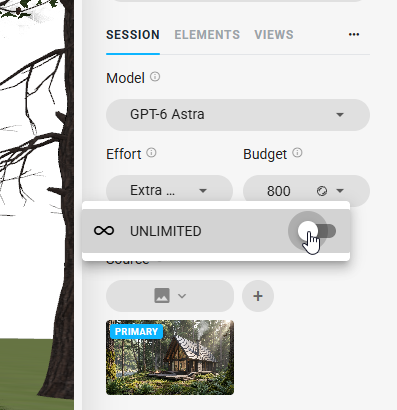
- A single credit budget per session, with a warning before a session that could go over it. A dropped connection is retried automatically instead of ending the session.
- Assets from Chaos Cosmos. The agent can furnish the model with Cosmos assets, which render in Enscape as the full asset.
- Materials from Chaos Cosmos. The agent can look up Cosmos materials for the surfaces it models (“brick”, “oak flooring”) and apply them. They show textured in the 3D view and bake into your host model.
NOTE: Agentic Modeling is in Beta. During the launch promotion, agentic modeling is free up to a per-user credit allowance. Each session is charged only 1 credit so it appears in My Chaos. Hover over the promo line in the pane to see how much of your allowance is left.
 Native Bake — Revit, Rhino and SketchUp
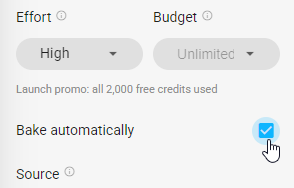
One BAKE writes the agent’s model into your host as native elements you can keep editing:
- Revit — walls, floors and roofs become native Revit elements. Doors and windows are placed as door and window families, with the swing and hand the agent chose. Compound objects bake as one family, and cameras become perspective 3D views. Cosmos materials become project materials, and walls and slabs get a type whose structure layer uses that material. Anything without a native equivalent bakes as an Enscape proxy.
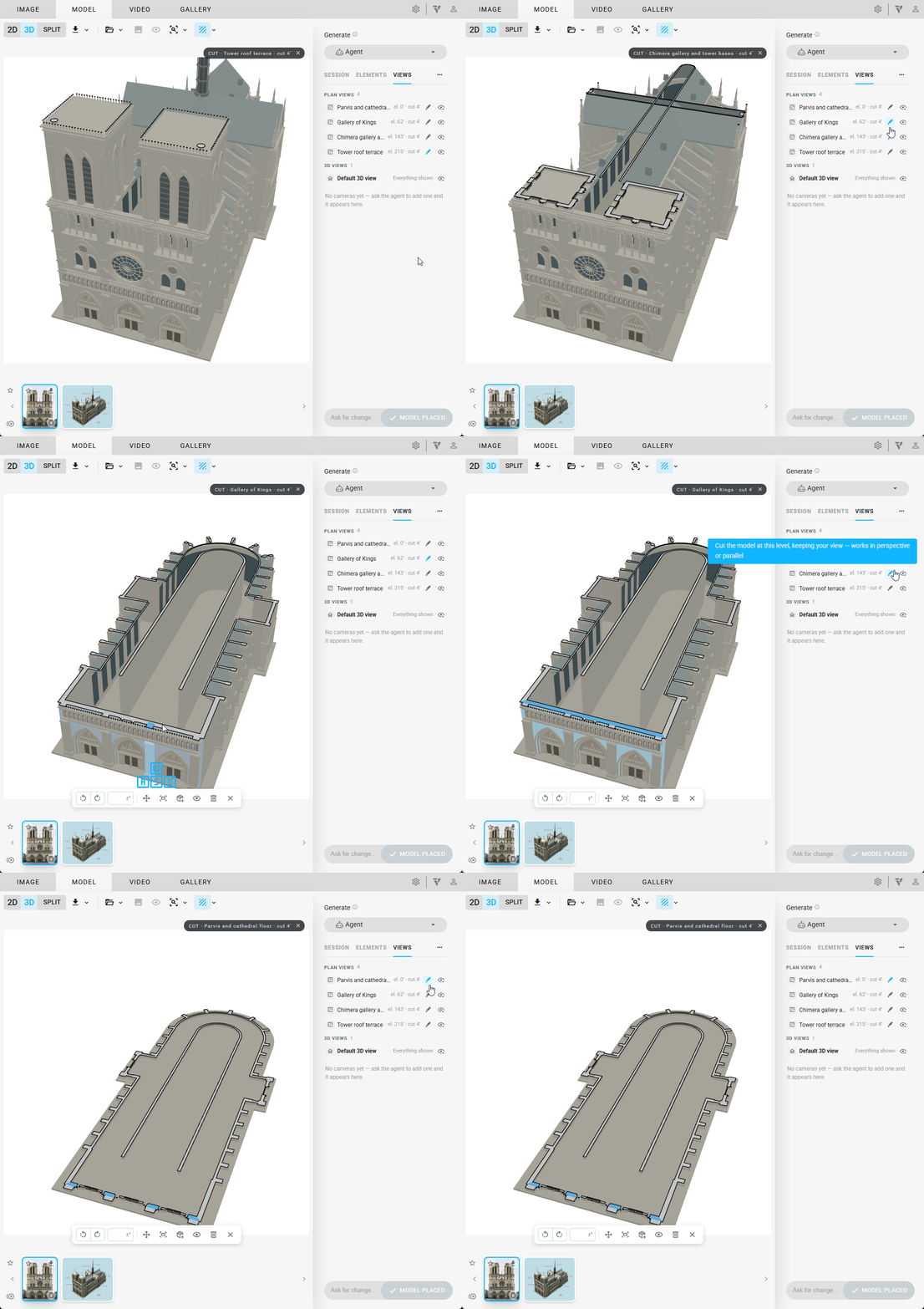
- SketchUp — every element becomes an editable group, ready for Push/Pull, with textured materials, and each camera becomes a Scene.
- Rhino — the model bakes as NURBS Breps with mitred wall corners, and each camera becomes a Named View.
What’s new around the bake:
- Progress bar across the whole bake, and a STOP button that halts it cleanly between steps
- The host file remembers the model (SketchUp and Rhino). Reopen Veras on the file and the agent’s model is restored, ready to continue
- Edits you make in the host are respected. If you reshape a baked object in your host, a later bake leaves it alone unless you choose to replace it
- BAKE is available from any rendering in the scene, not only the one the model started from
Native baking requires the Veras 5.2 plugin for your host. If you have an older plugin installed, Veras prompts you to update instead of baking.
NOTE: Native baking is supported in Revit, Rhino and SketchUp. Vectorworks and ArchiCAD support is not available yet.
 Scenes — The Model Lives in Your Gallery
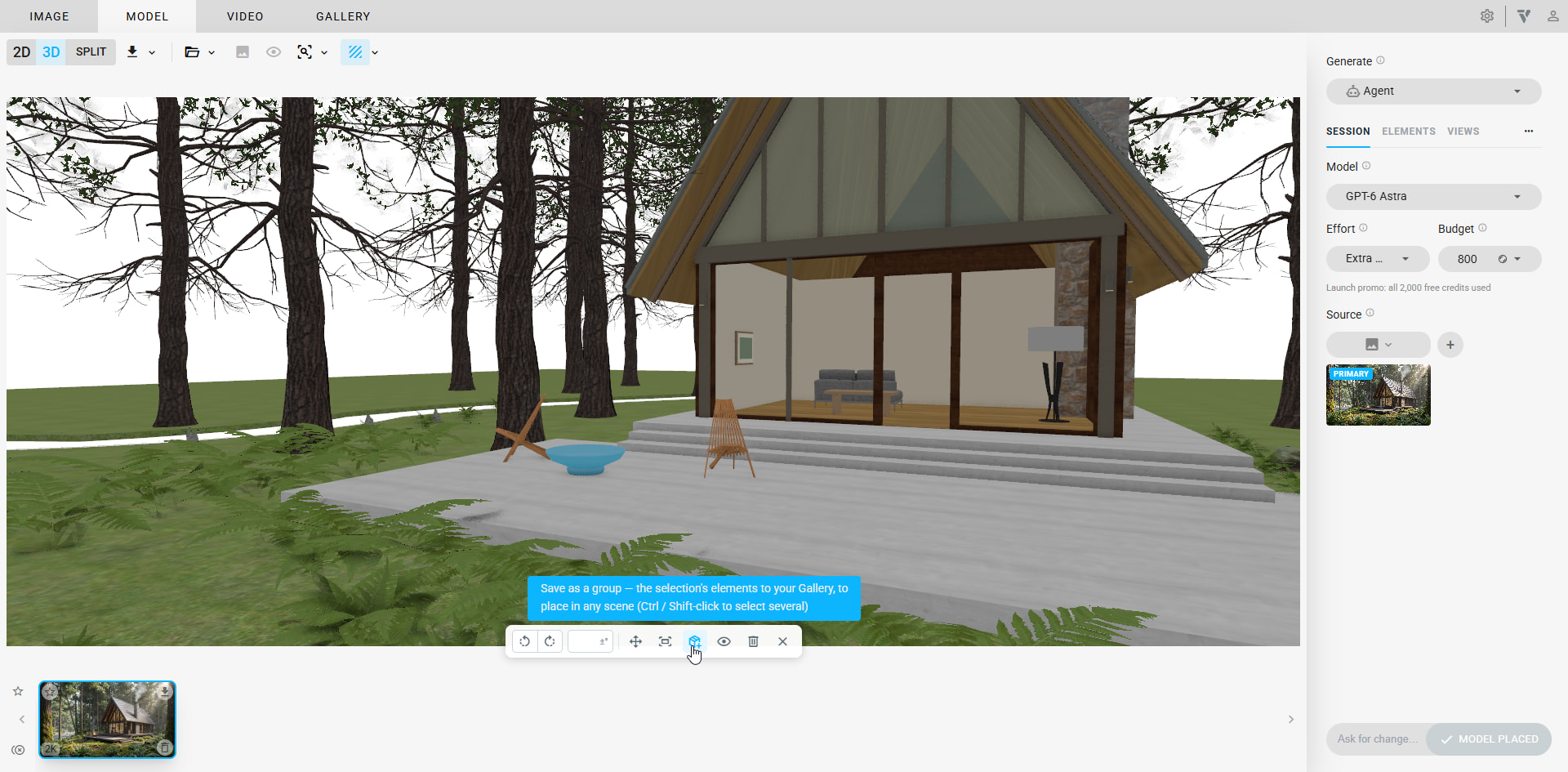
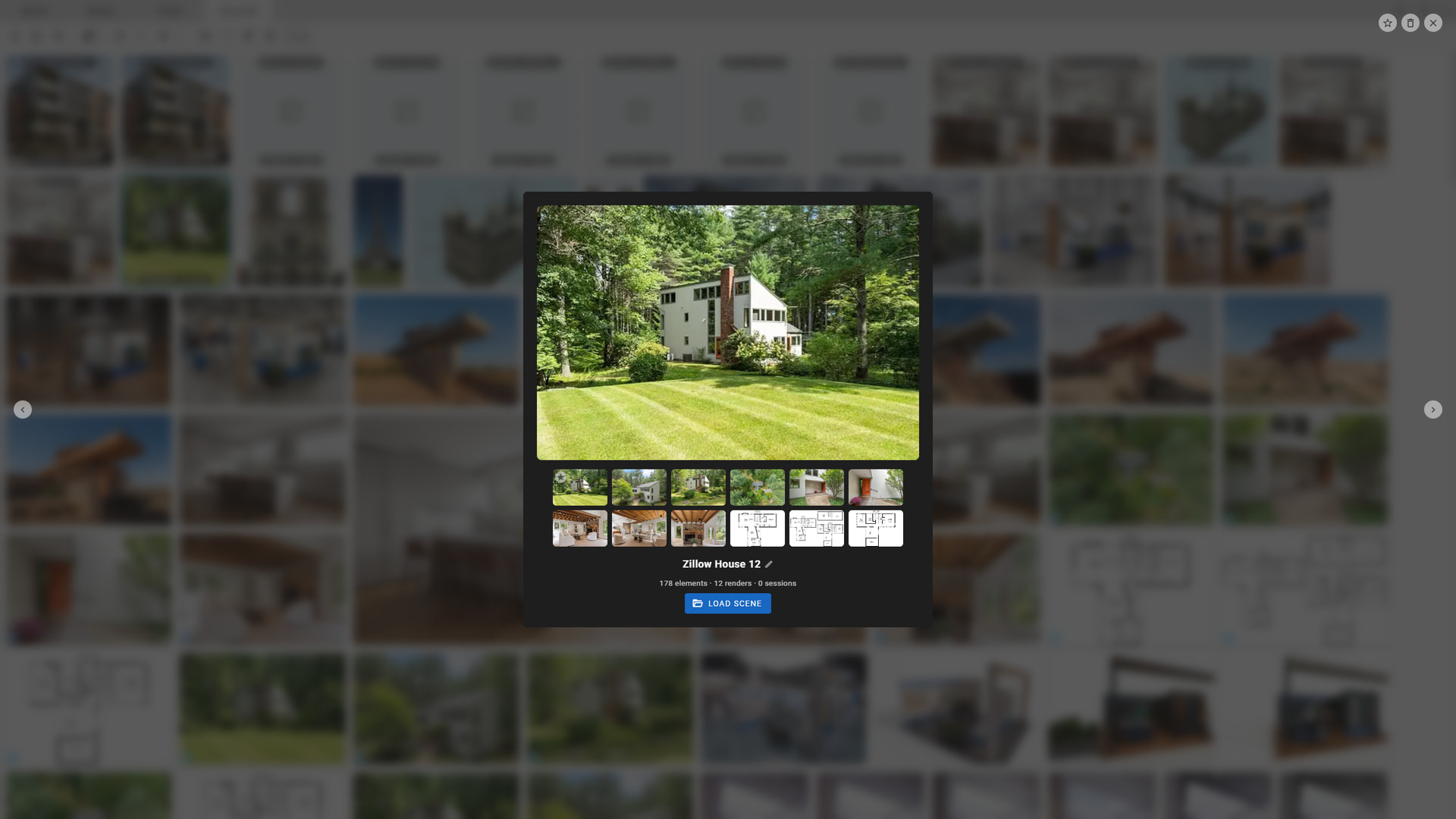
The agent’s model is saved as a Scene, a new item type in your Gallery.
- Saved as you go. A scene is created with the first element and saves itself automatically after that.
- Chat sessions are saved with the scene. Open ••• → Restore session to pick a conversation back up with its full history.
- Load a scene with LOAD SCENE in the Gallery or FROM GALLERY… in the pane. Loading a scene also brings back its renderings.
- Organize it in the Gallery: rename the scene, star its thumbnail, drag renderings to reorder them, and add or remove renderings.
- A scene opens at its starting view.
The pane’s tabs got new content as well:
- VIEWS lists the model’s cameras plus a Default 3D view. Click one to look through it.
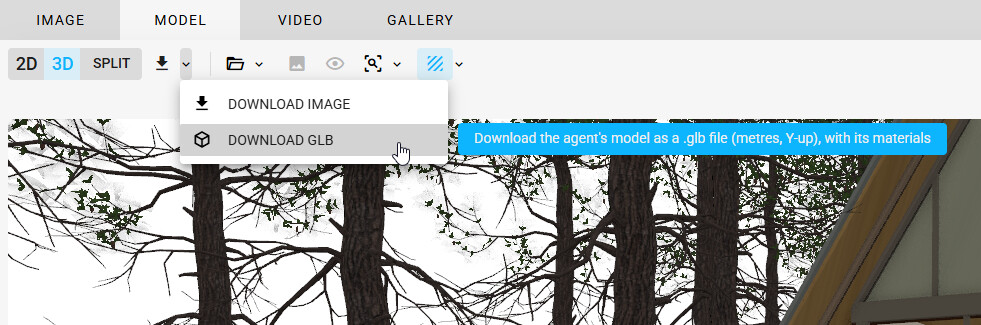
- ELEMENTS lists the agent’s elements, the host model’s elements by category, and anything you brought in yourself under IMPORTED: GLBs and the OBJ opened in the web app. Each can be hidden or focused.
- SESSION shows the agent’s activity as it works.
 Material Gen — Now Available to Everyone
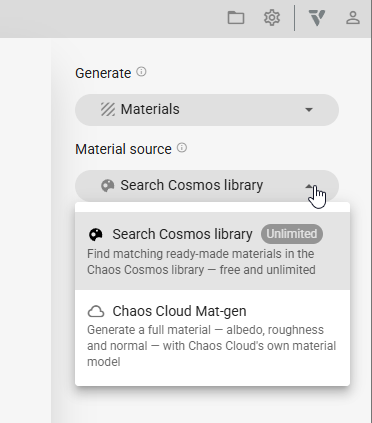
Materials on the MODEL tab is now available. Pick surfaces on a rendering and Veras finds matching materials for them.
- Search Chaos Cosmos, or create one with Chaos Cloud Mat-gen
- From 3D Model lists your model’s surfaces, the agent’s elements included, with one surface per paint. It also works on views the agent has aligned.
- BAKE to Revit, Rhino and SketchUp writes the maps into the named materials in your host as one undo step
- Generate several surfaces at once. Work in progress now survives switching renderings, and you can BAKE without pressing Esc first.
 Walk Through the 3D View
The 3D viewers now support first-person navigation:
- W / A / S / D to move, Q / E to move down and up
- Left-drag to look around
- Speed adapts to the size of the scene, so it works on a single asset or a whole building
- Uses physical key positions, so AZERTY and QWERTZ keyboards work too
- Click inside the 3D view to use the keys there. Letter shortcuts in the rest of the app keep working.
 Assets and the 3D View
- Faster Move tool. Moving an asset picks up the mesh that’s already in place instead of reloading it, and Esc puts it back where it was.
- Assets stand on the agent’s geometry. Click-to-place, move and auto-placement now land on agent-modeled floors and roofs as well as on the host model.
- Imported GLBs can be selected in Agent mode, alongside the agent’s own elements
- Cosmos assets are cached on your computer. Placing or applying a Cosmos asset or material a second time is instant. Settings → Cached Cosmos assets shows how much space the cache uses and has a button to clear it.
- Revit proxy bakes show a clean outline without the triangle mesh lines
- Zoom to extents is enabled whenever there is something to frame
More Improvements
- The IMAGE tab opens at 16:9 instead of 1:1
- Ctrl+Click in the Gallery toggles selection again, and deleting a rendering selects the one next to it
- Reference image tiles all have a close X in the top-right corner and a lock, including the main Source
- Presets whose prompt contains a
%character now import correctly - Preset share links work with long prompts. Long links are now compressed to stay under URL length limits.
- Install Veras as an app. The web app can now be installed from the browser’s address bar.
- The updated credit cost is shown for segmentation with Nano Banana 2 Flash
- Selections drawn on the 2D canvas are always applied before a render starts
- Cosmos search gives better matches on masked areas, and material labels no longer clutter the image