Access
Web App | Windows | Mac Sketchup | Mac Vectorworks or ArchiCAD
SketchUp Mac Update Instructions: Updating Veras for SketchUp on Mac
SketchUp Mac First Install Instructions: Installing Veras for SketchUp on Mac
Vectorworks Mac Install and Update Instructions: Getting Started with Veras for Vectorworks
ArchiCAD Mac Install and Update Instructions: Getting Started with Veras for ArchiCAD
 Smart Selection
A major new selection workflow — Smart Selection — uses AI to understand what’s in your image and lets you select objects, materials, or categories with a single click. Combine it with the new Modify/Replace modes for surgical edits without ever touching a mask brush.
Pick from category, object, or material flows, or write a custom prompt to target anything in the scene. Recent prompts are saved with thumbnails so you can re-use selections across renders. Custom prompt selection maps are generated in parallel, cached, persisted to the cloud, and restored when you switch renders or load from the gallery. The feature is available across every design integration (Revit, Rhino, SketchUp, Vectorworks, ArchiCAD, Enscape, Forma, and web).
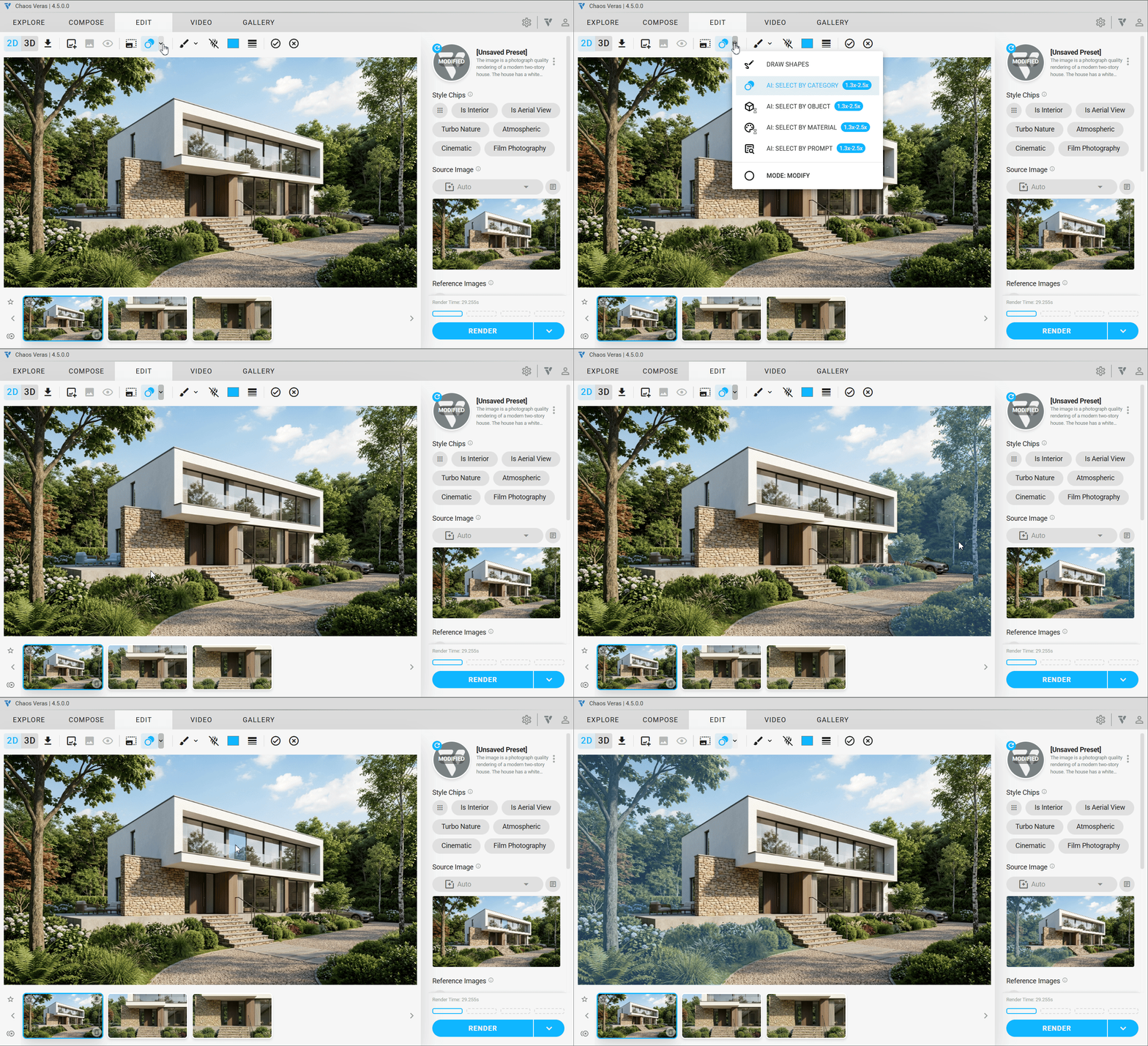
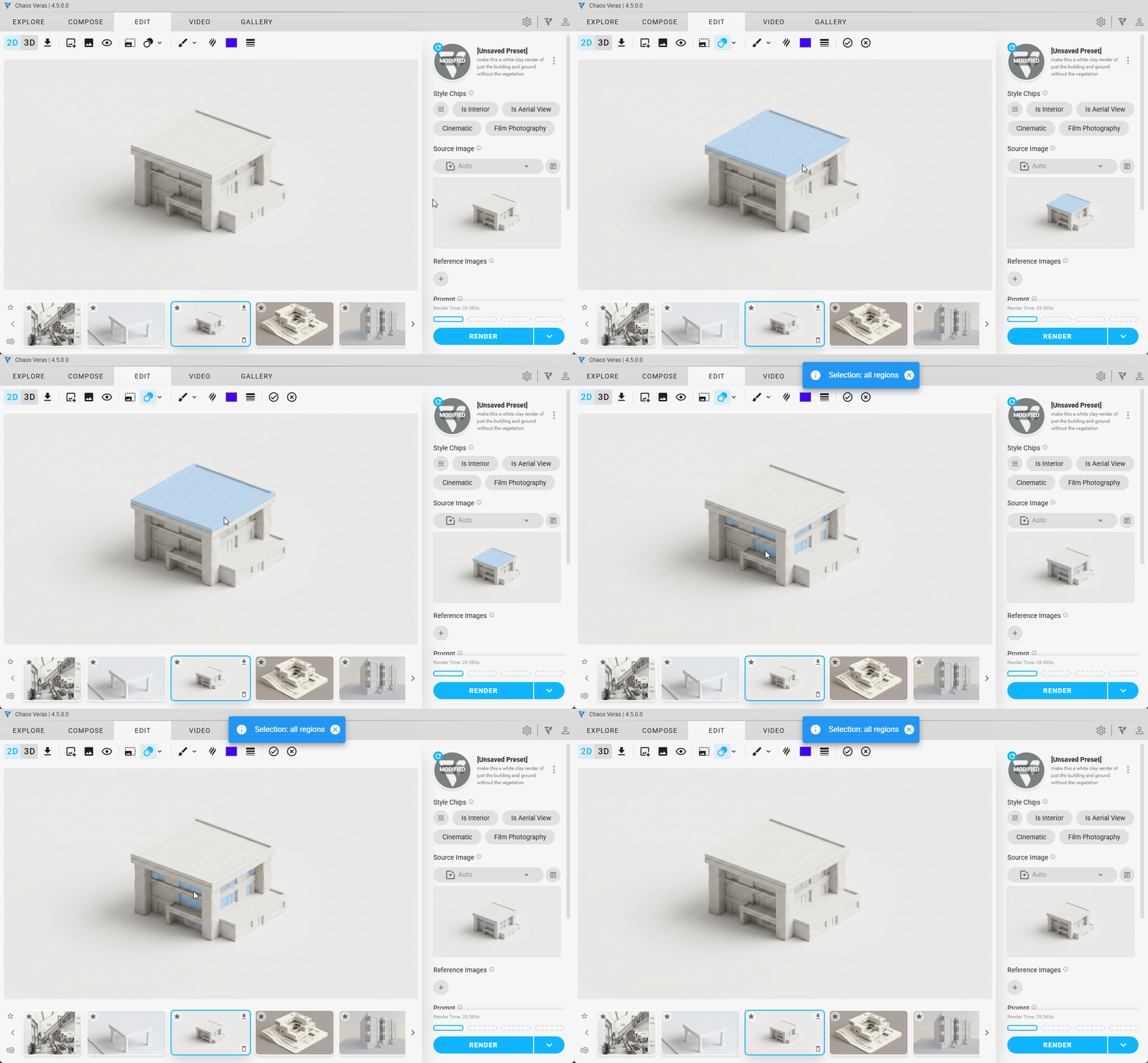
NOTE: One click enables selection of every instance of a material or object class using Alt key
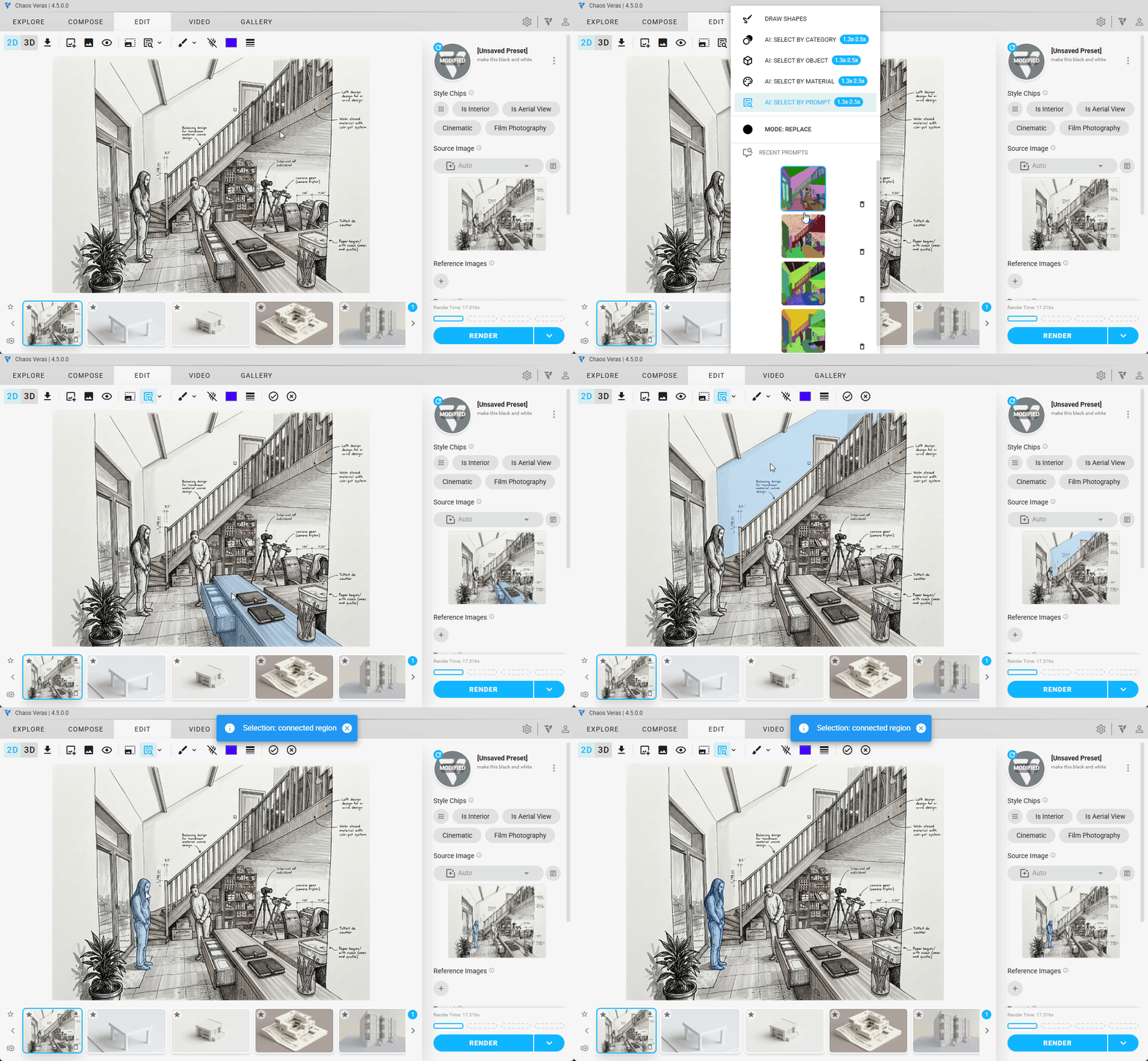
NOTE: Recent Prompts remembers the selections you’ve made so you can reuse them across sessions
 Share Gallery Items
You can now share any render or gallery item with a shareable link, and recipients can clone shared items into their own gallery in one click.
Manage everything from the new Shares panel: copy links, and revoke shares you no longer want public.
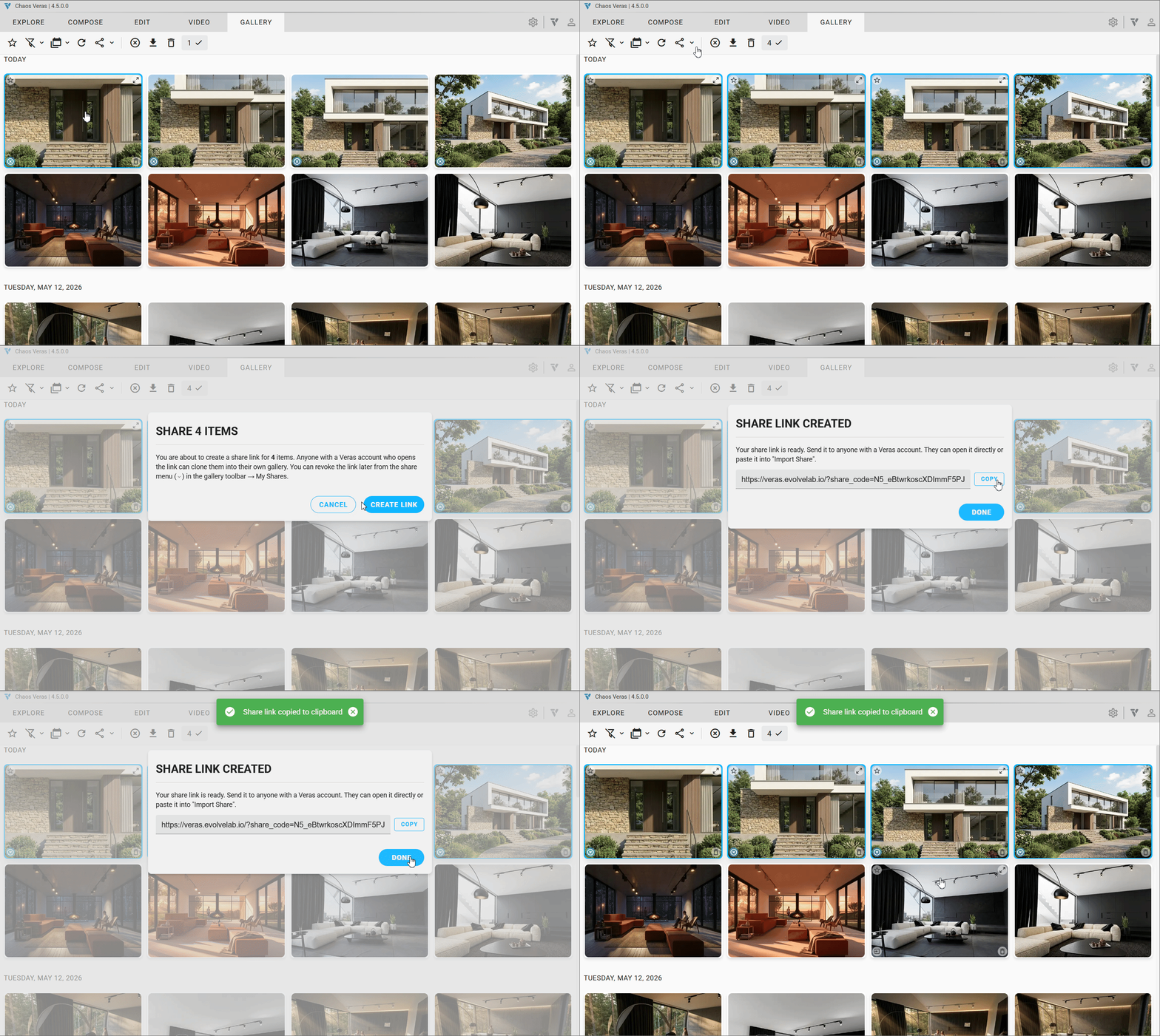
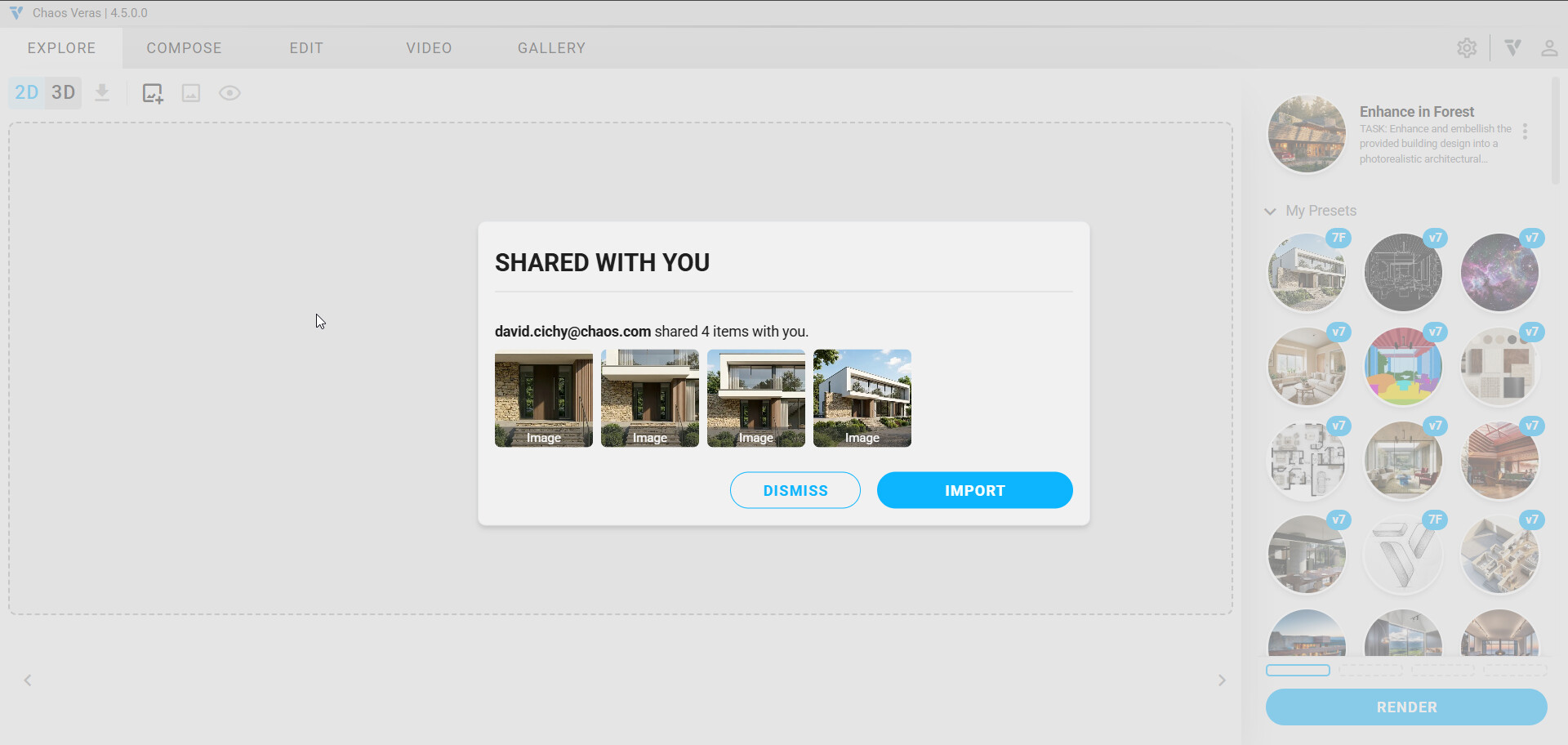
NOTE: Share a render via link, and recipients can preview and clone it into their own gallery
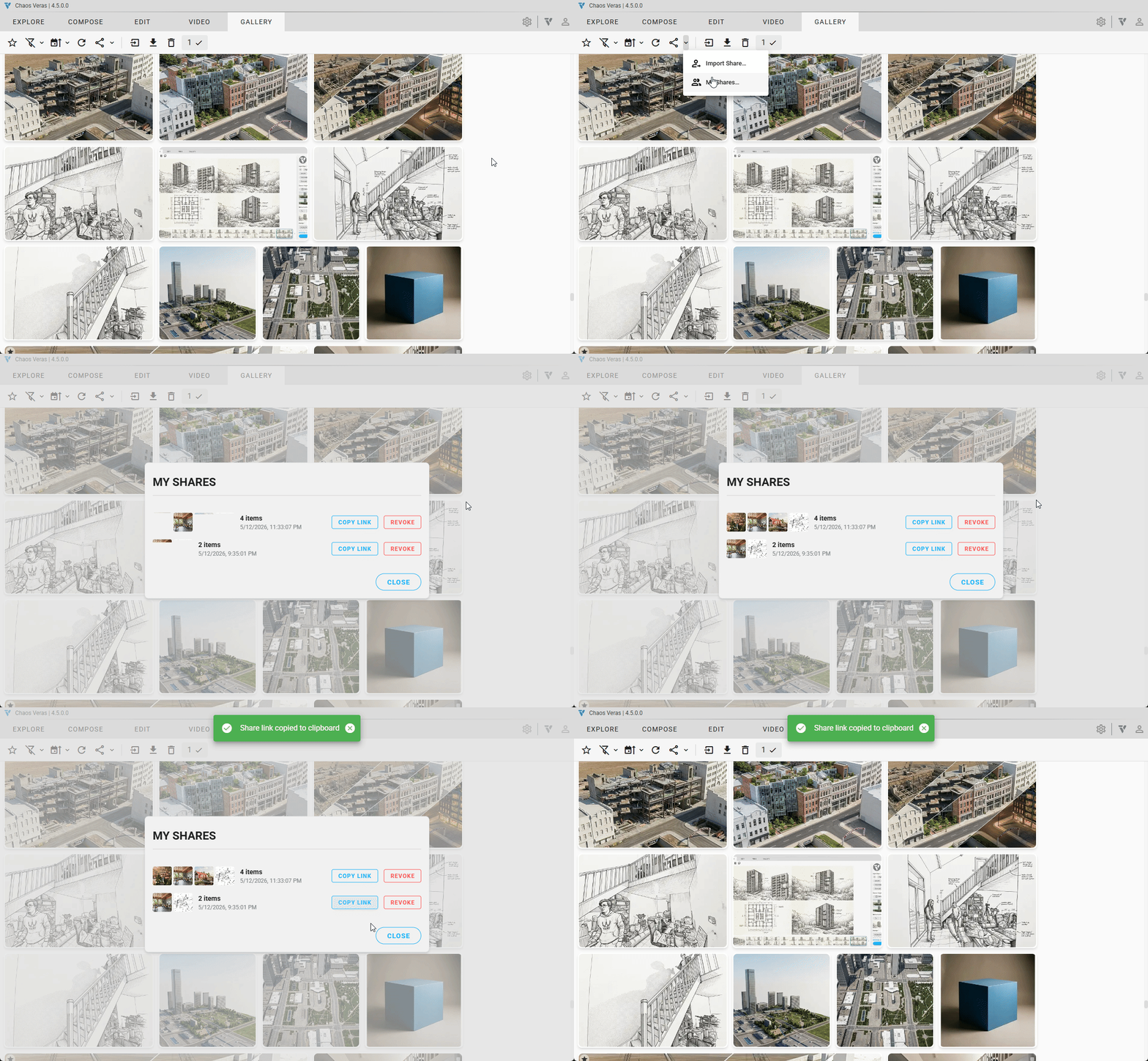
NOTE: Manage all your active shares from one place — copy or revoke at any time
 Remove Background
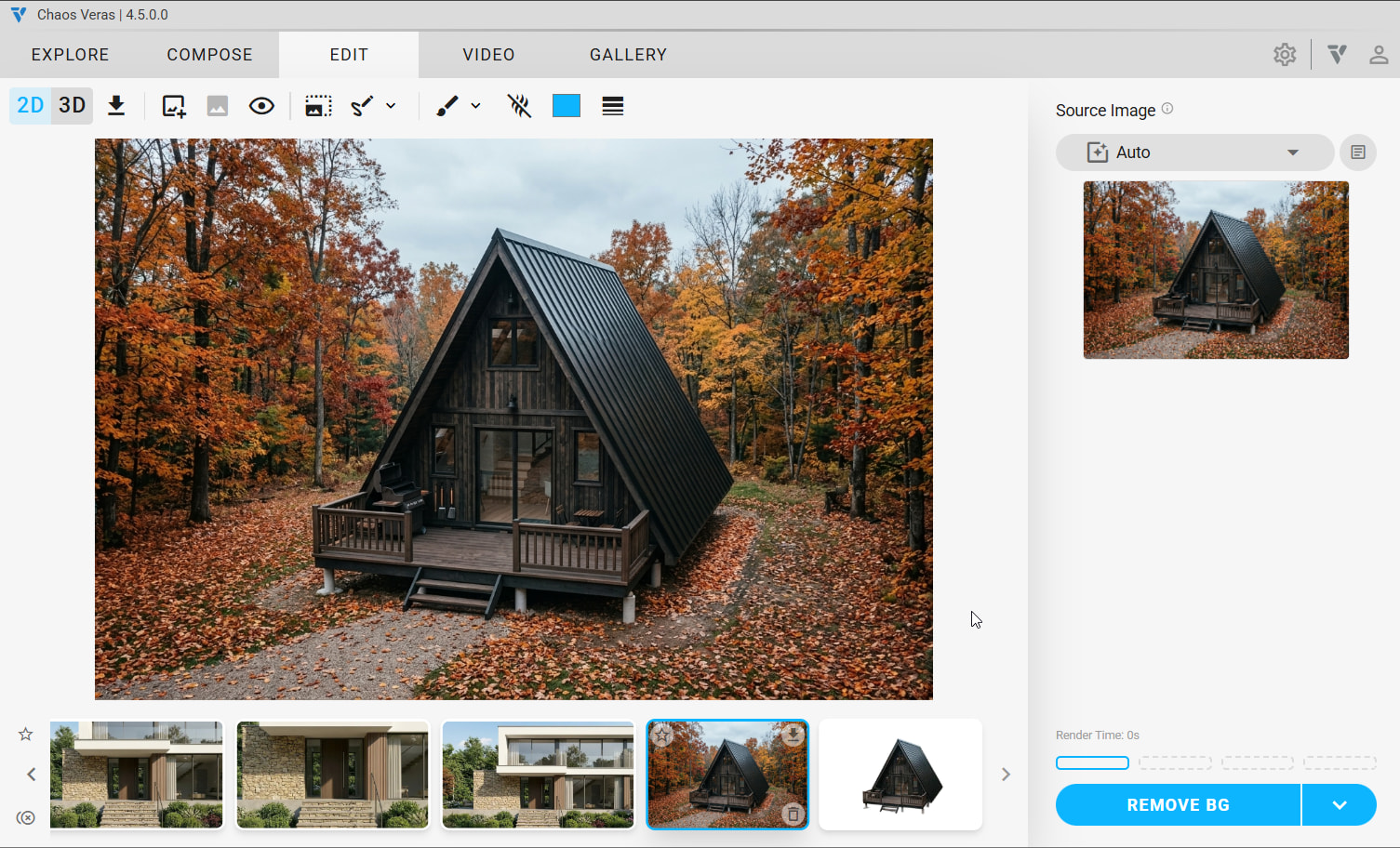
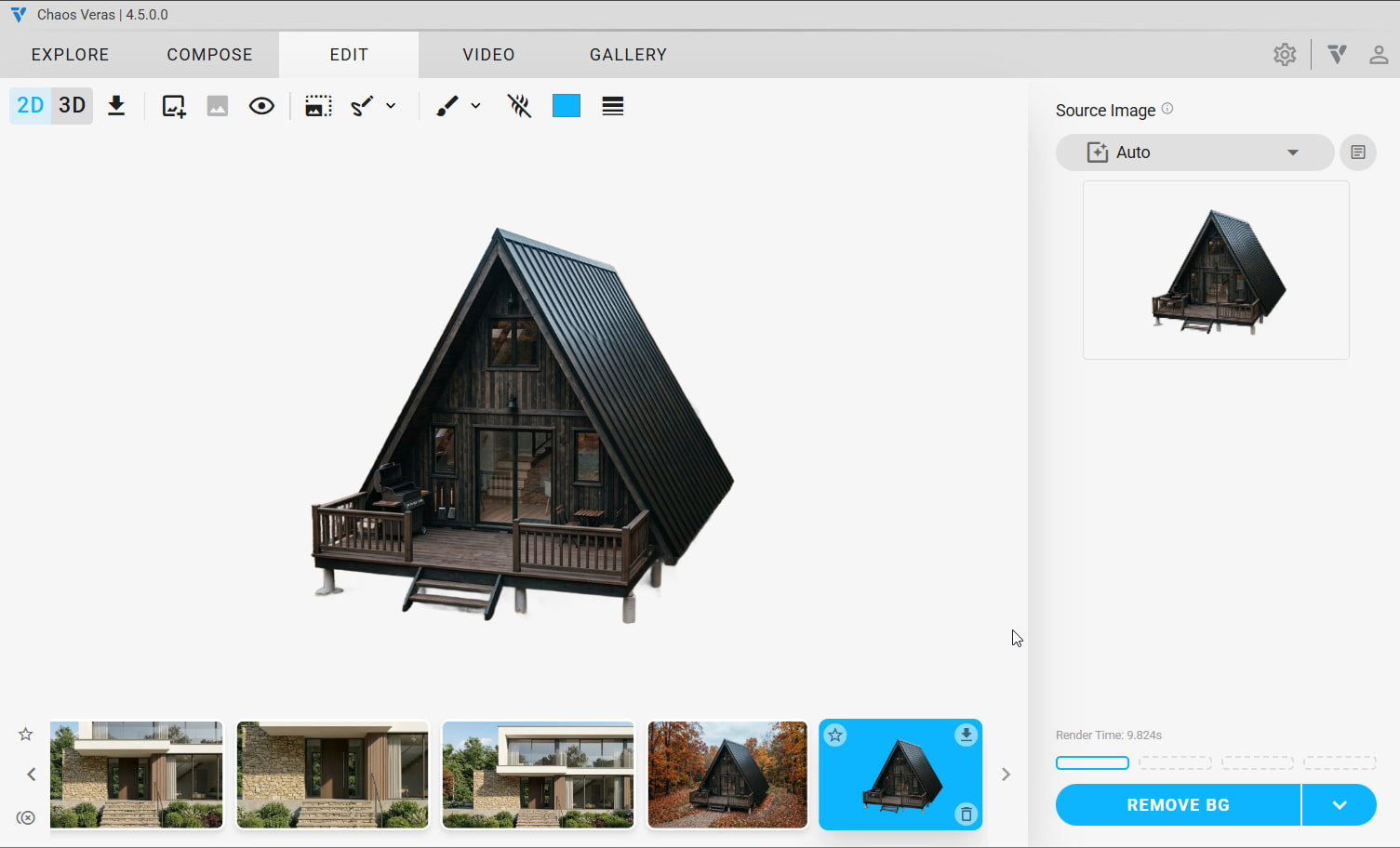
A brand new render mode — Remove Background — replaces the background of any source image with transparency. The result exports as a transparent PNG for compositing into mockups, presentations, or downstream tools.
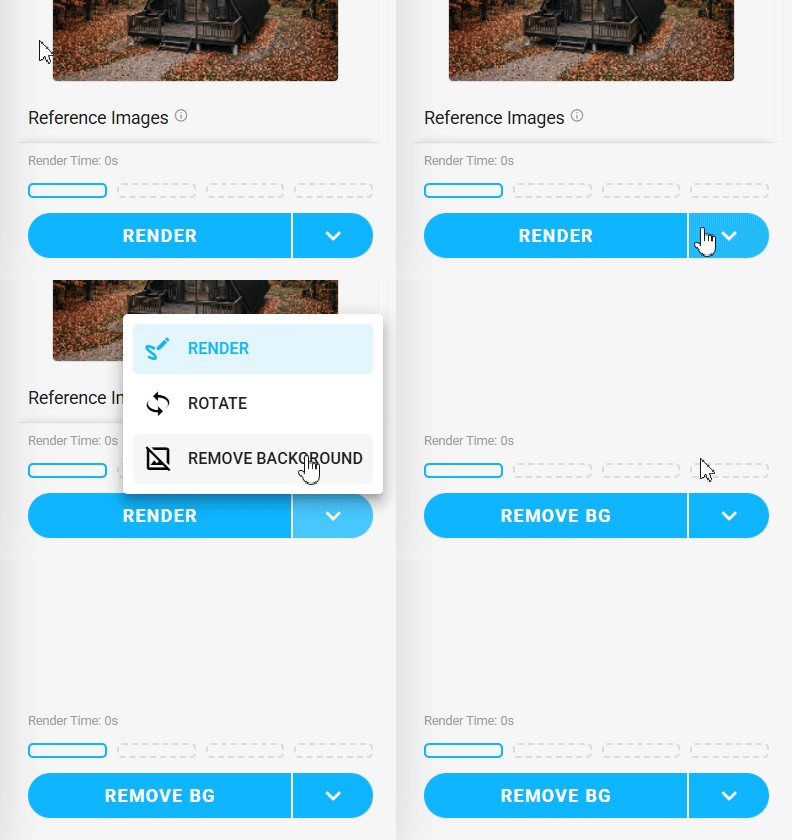
NOTE: Generate a transparent-PNG cutout from any source image
 Upload History
Manual uploads now behave like renderings. Every image you upload in a session is retained for navigation with prev/next arrows on the source selector, so you can jump back to an earlier upload without re-importing — especially useful when stringing together frames for a video.
Drag-drop multiple files at once, restore your last upload when switching tabs, and use uploaded images everywhere a source image is accepted (still, video, Rotate Image, Remove Background).
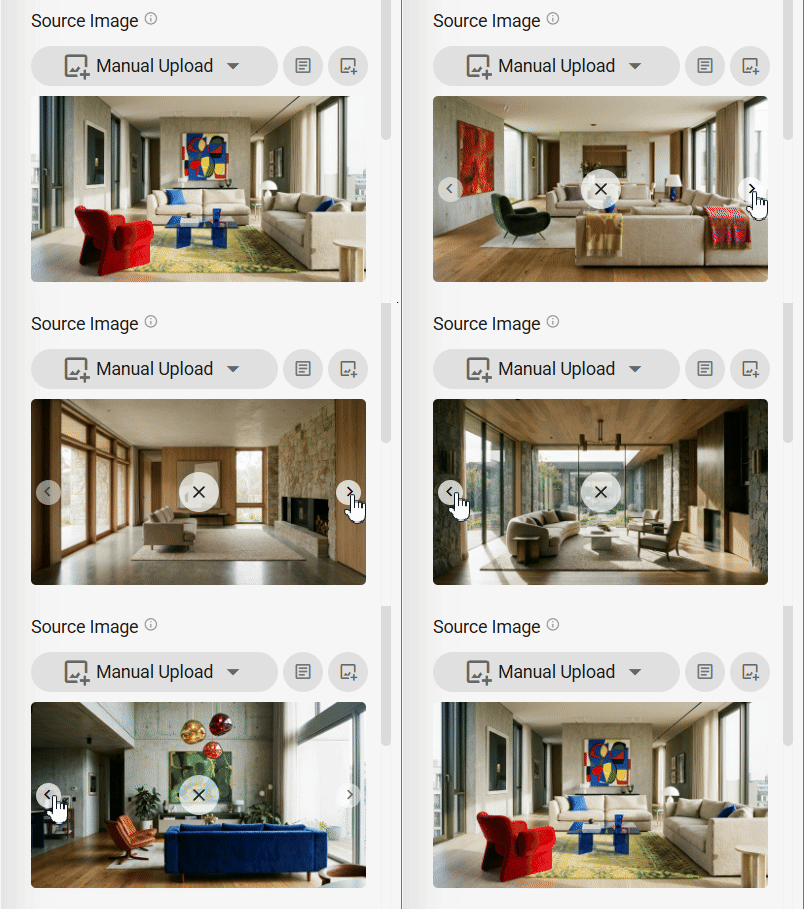
NOTE: Cycle through your manually-uploaded images with the new prev/next arrows
 New Sketch Tools
The sketch toolbar has been overhauled with dedicated buttons for Freehand, Line, and Curve tools, plus full undo/redo support (keyboard shortcuts included). Click-to-place previews make the Line and Curve tools feel precise, brush color and width, and selection makes picking individual sketch strokes more reliable.
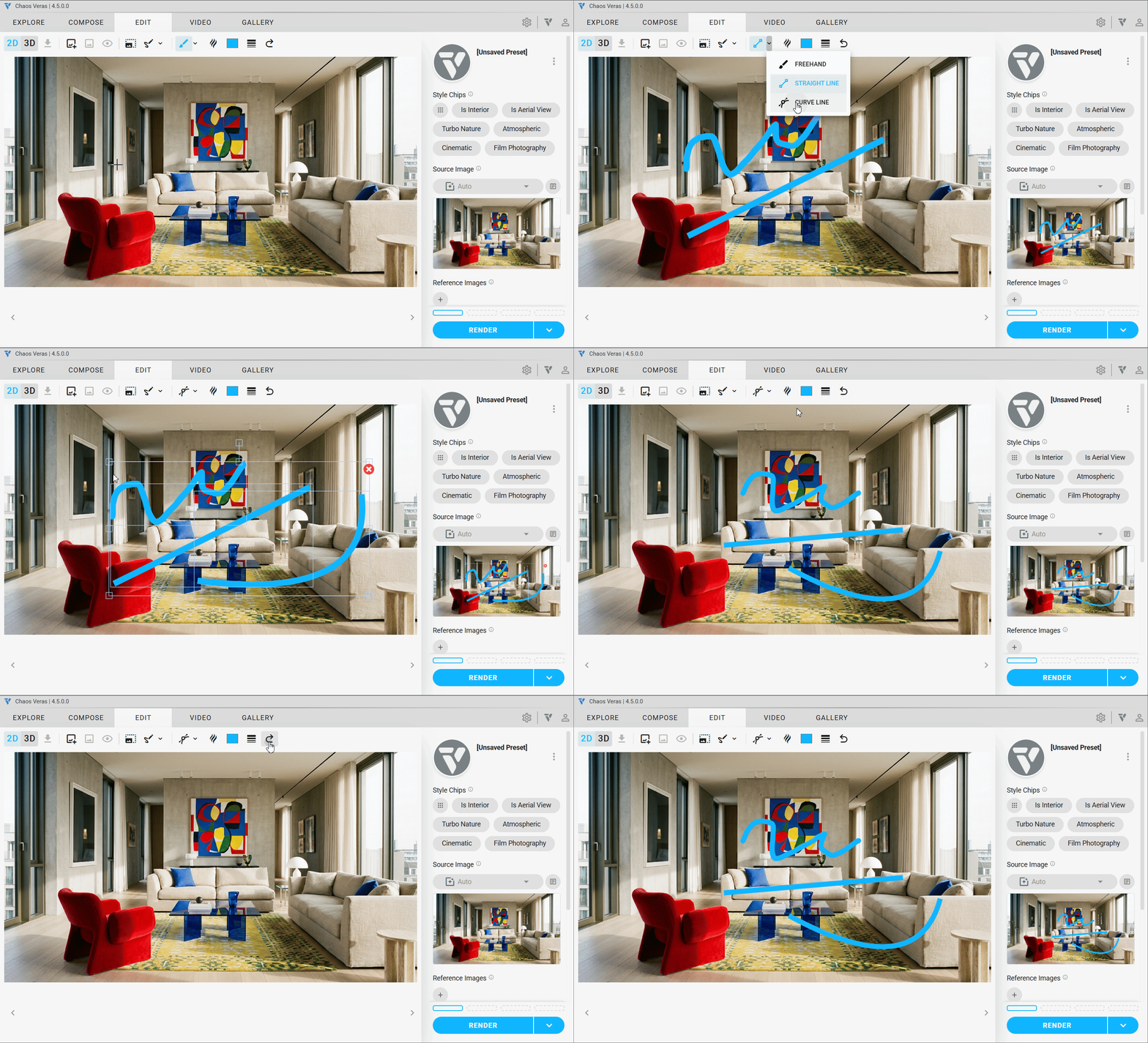
NOTE: Freehand, Line, and Curve tools with full undo/redo
 Describe Source Image
Describe Source Image is now part of the main panel (no longer experimental). Powered by a new AI model — Florence 2 — it generates a written description of your source image at the detail level you choose: Short, Medium, or Long.
Use it as a starting point for your prompt, copy the description to the clipboard with one click, or cancel mid-request if you change your mind. Changing the source image automatically clears the prior description so you always know what you’re describing.
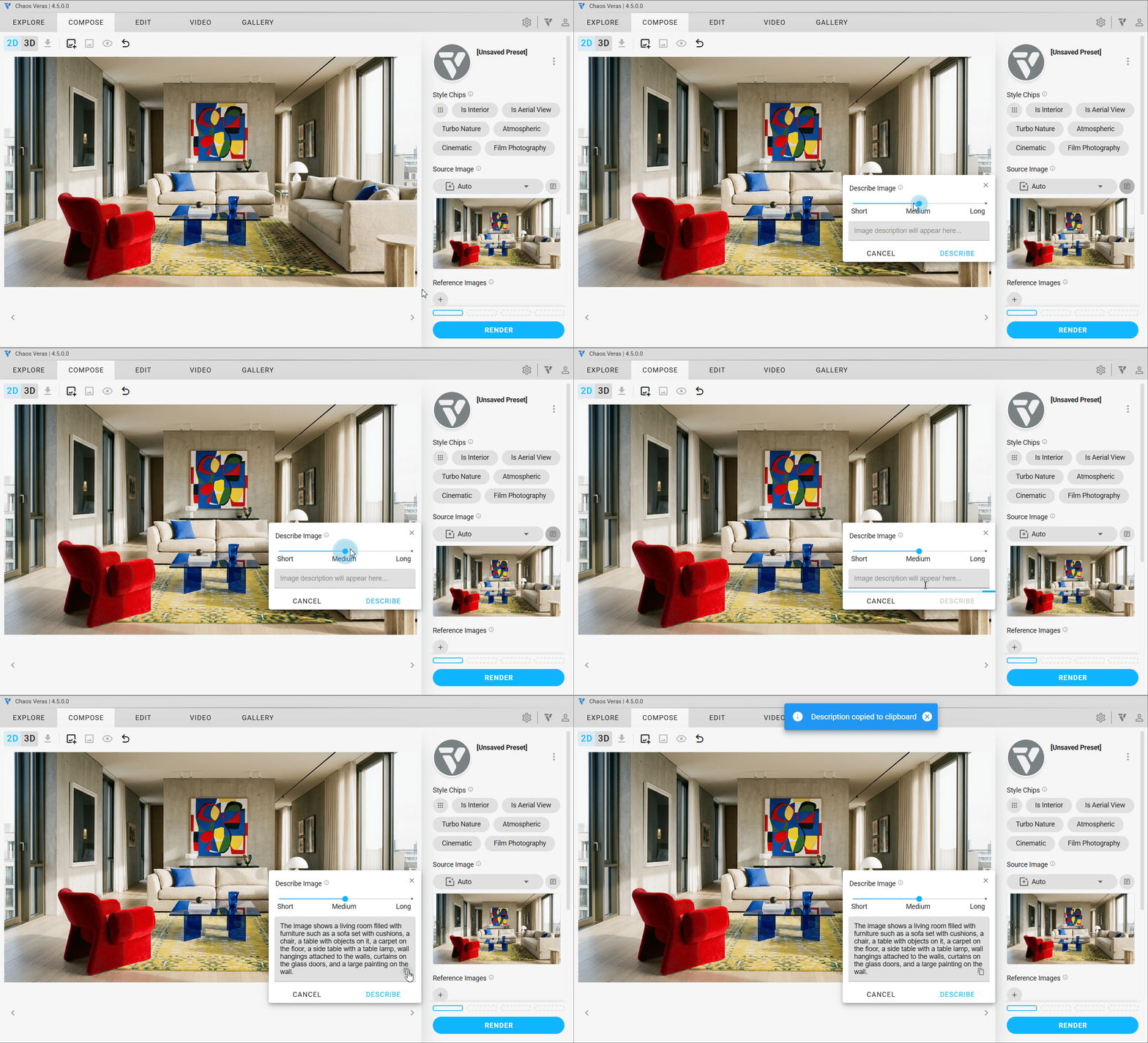
NOTE: Florence 2 generates Short, Medium, or Long descriptions of your source image — copy to use in your prompt
More Improvements
- Gallery loads faster — video thumbnails generate in the background, images preload on hover, layout uses true video dimensions for correct aspect ratios
- Drop rendering thumbnails onto reference images — instantly use a previous render as a reference without re-importing
- Split eye button — separate toggles for “Show Original” (source image, hotkey O) and “Live Preview” (CAD sync, hotkey L)
- Source images persist to the cloud — when you view a render later (or on a different machine), its original source image loads with it
- Auto text-to-image when you haven’t uploaded a source image — clearer verbiage in the “You must first upload” prompt
- No more session expired dialogs — sessions now restart if expired with a single retry across image, video, and 3D rotation renders
- Updated Trial Expired graphic
DISABLEDEFAULTANALYTICSregistry flag (set by IT managers) now hides the analytics setting in the Settings modal entirely- Filters now appear correctly when toggling Show Original
- Auto source thumbnails now work with manually uploaded images
- Various stability fixes across video tab, aspect ratio canvas redraws, and drag-drop flows
