Access
Web App | Windows | Mac Sketchup | Mac Vectorworks or ArchiCAD
SketchUp Mac Update Instructions: Updating Veras for SketchUp on Mac
SketchUp Mac First Install Instructions: Installing Veras for SketchUp on Mac
Vectorworks Mac Install and Update Instructions: Getting Started with Veras for Vectorworks
ArchiCAD Mac Install and Update Instructions: Getting Started with Veras for ArchiCAD
Veras 5.3 introduced NODES, where you build your own workflows, and 5.3.3 added ten more languages. Your NODES workflows now get their own buttons on Revit’s ribbon and open in a window of their own, and Design Lock now keeps your camera angle and your model’s shapes. The MODEL tab turns any image into 3D models, and its agent gets a new message box. And Veras now runs in SketchUp 2027, Vectorworks 2026 and Archicad 29, with the 3D Viewer in Archicad for the first time and in Vectorworks without the experimental setting.
 Veras Workflows — Access on Revit’s Ribbon
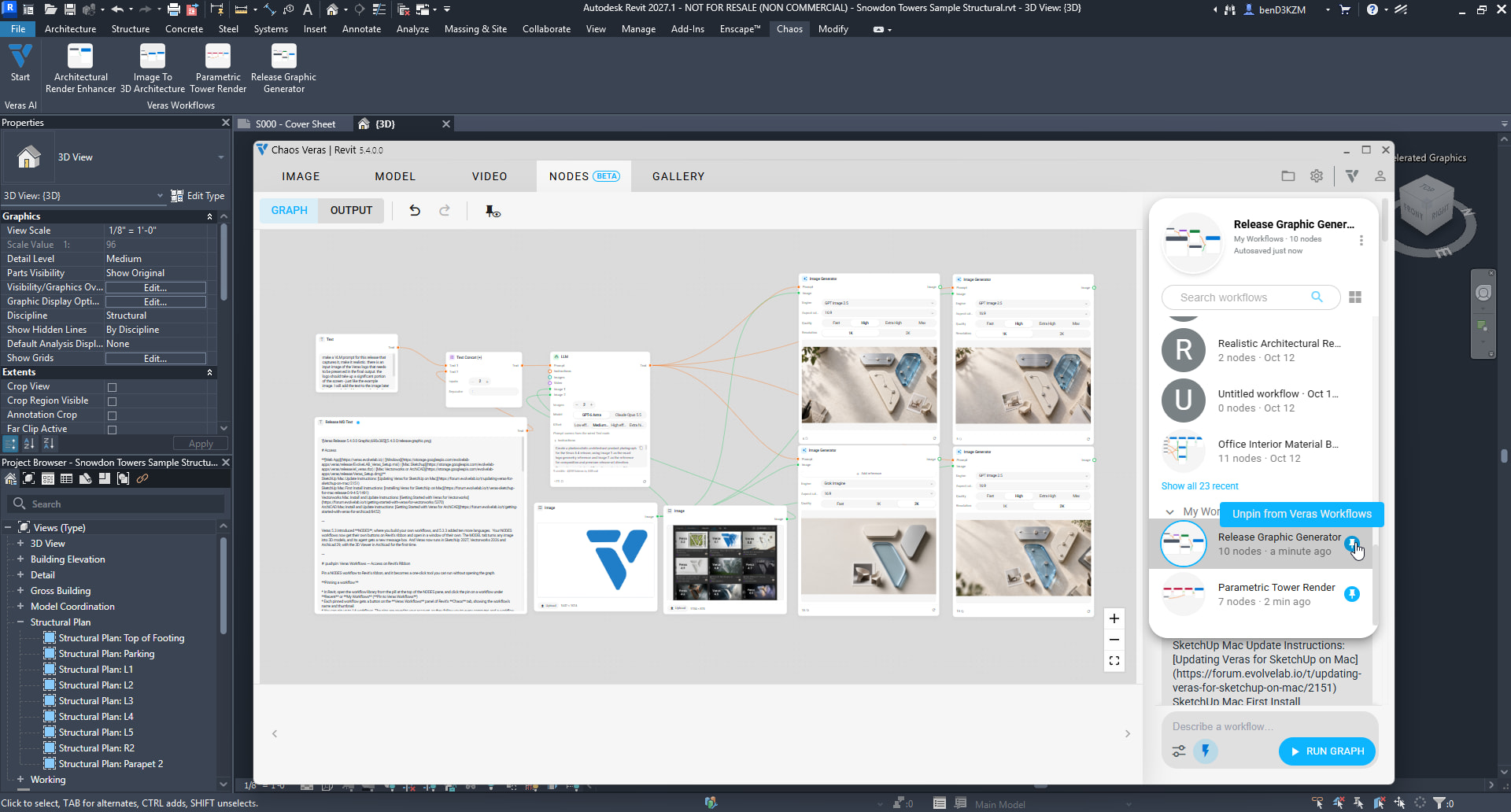
Pin a NODES workflow to Revit’s ribbon, and it becomes a one-click tool you can run without opening the graph.
Pinning a workflow:
- In Revit, open the workflow library from the pill at the top of the NODES pane, and click the pin on a workflow under Recent or My Workflows (Pin to Veras Workflows)
- Each pinned workflow gets a button on the Veras Workflows panel of Revit’s Chaos tab, showing the workflow’s name and thumbnail
- You can pin up to 14 workflows. The pins are saved to your account, so they follow you to every computer, and a workflow you delete takes its button with it
Running it:
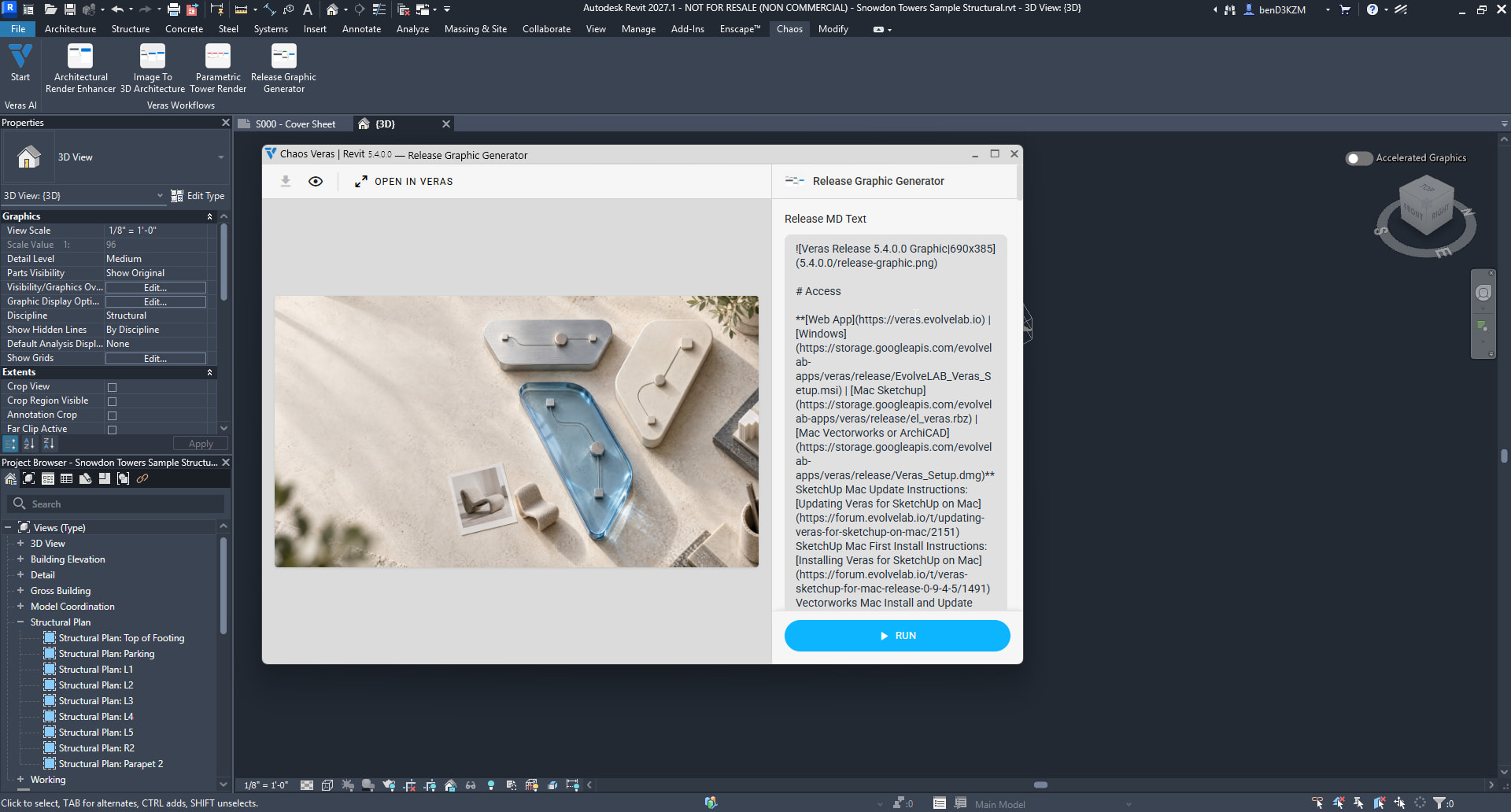
- Click a workflow’s button and Veras shows that workflow alone, in a compact window: its result on the left and its controls on the right. A workflow without controls shows its result over a single RUN button.
- Change the controls and press RUN. It runs exactly as it would in NODES, with the same cost, the same warning before an expensive run, and the same reuse of unchanged results. STOP ends a run.
- Results lists this workflow’s renders, newest first, with the latest run marked. All Results opens every render in the whole Veras window.
- Download the result, or compare it with the image you started from, from the bar over it
- Your changes to the controls are saved with the workflow, as in NODES. The window holds no agent and no graph: just the result and its controls.
- Open in Veras shows the workflow’s nodes in the whole Veras window, and Revit’s main Veras button brings the whole app back too
Build the workflow once in NODES, put its key settings in CONTROLS, and pin it: it then works like a small app inside Revit.
NOTE: Veras Workflows needs the Veras 5.4.0.0 Revit plugin. Install the 5.4.0.0 Windows installer.
 Design Lock — Your Design, From Your Camera Angle
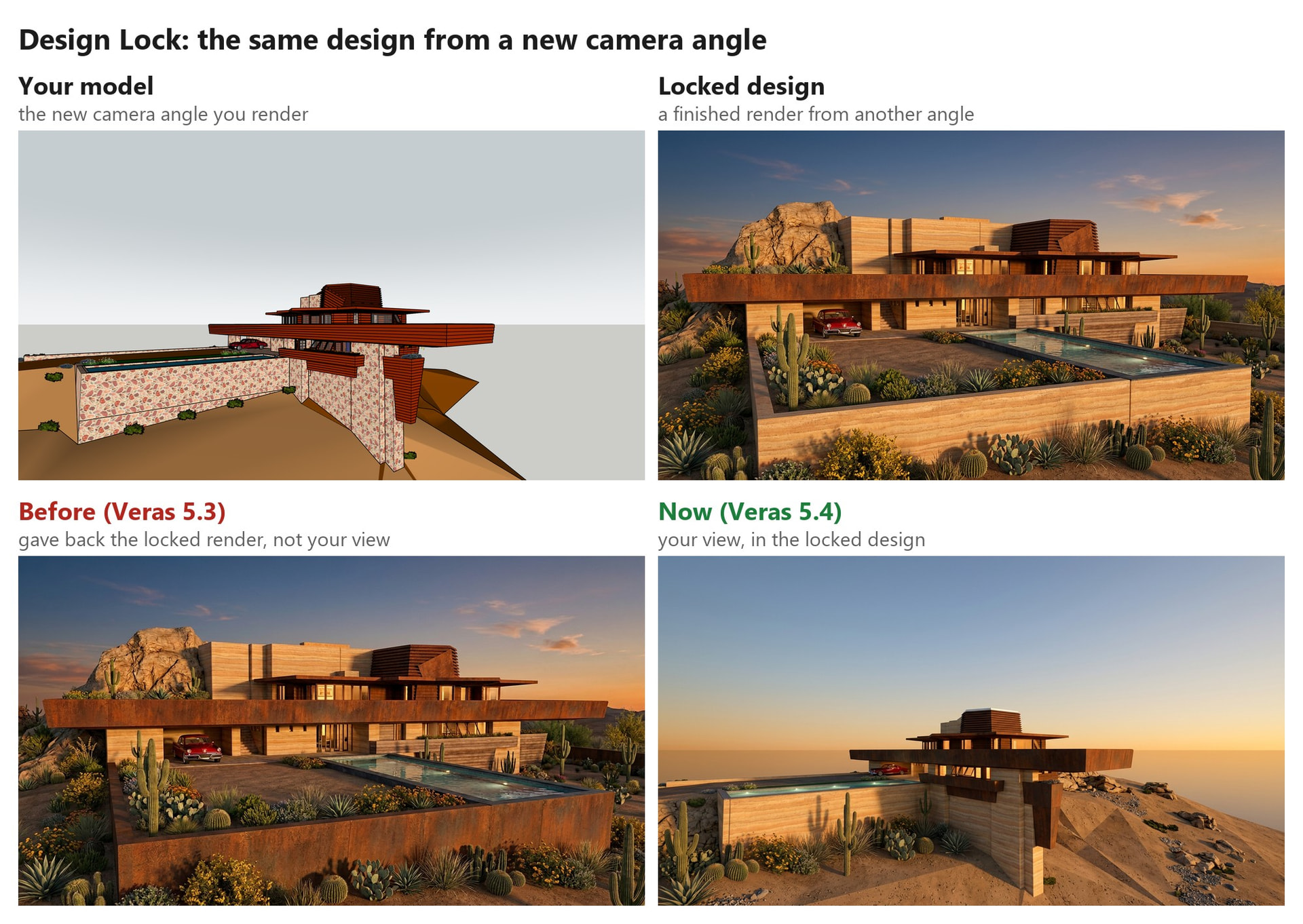
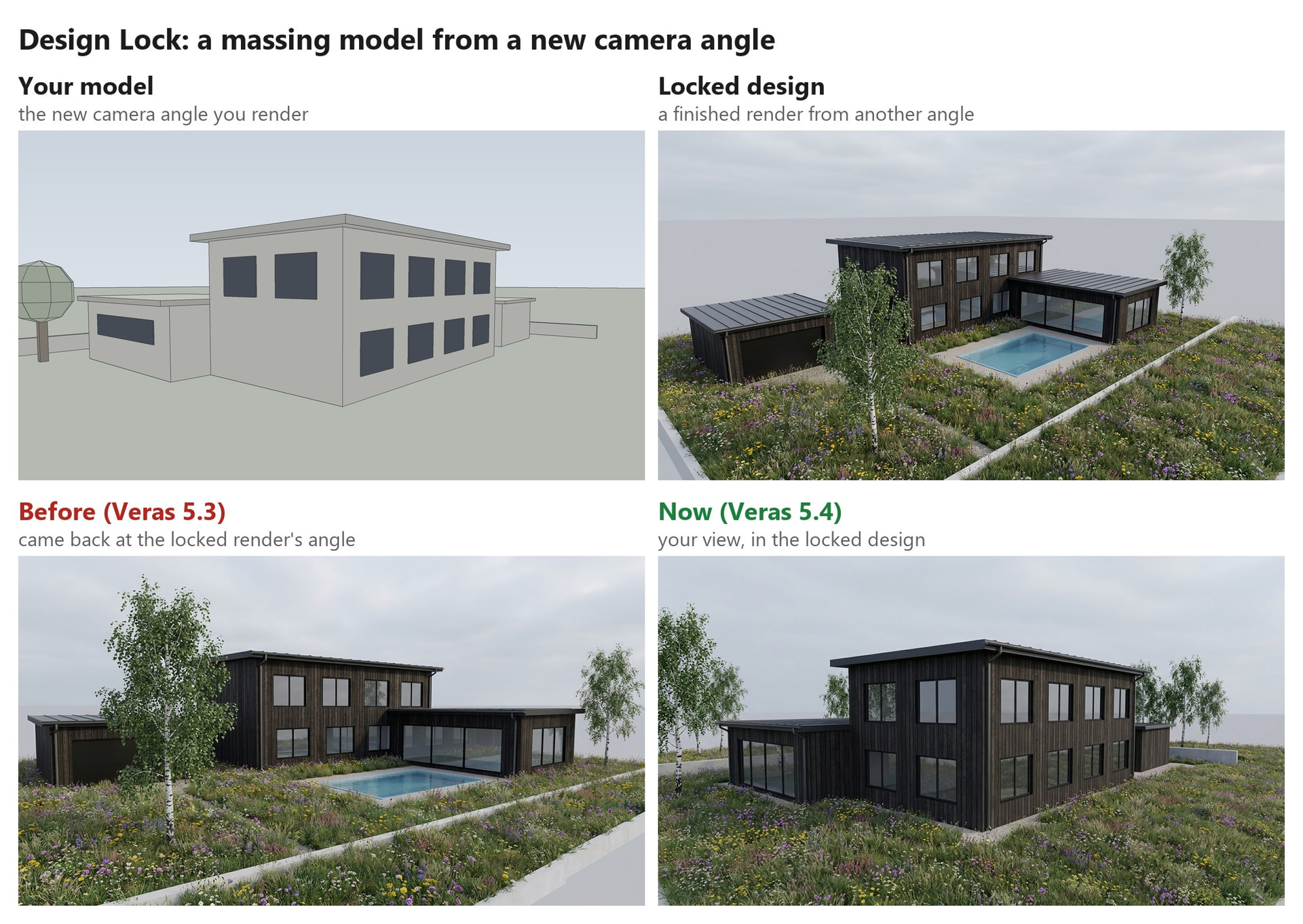
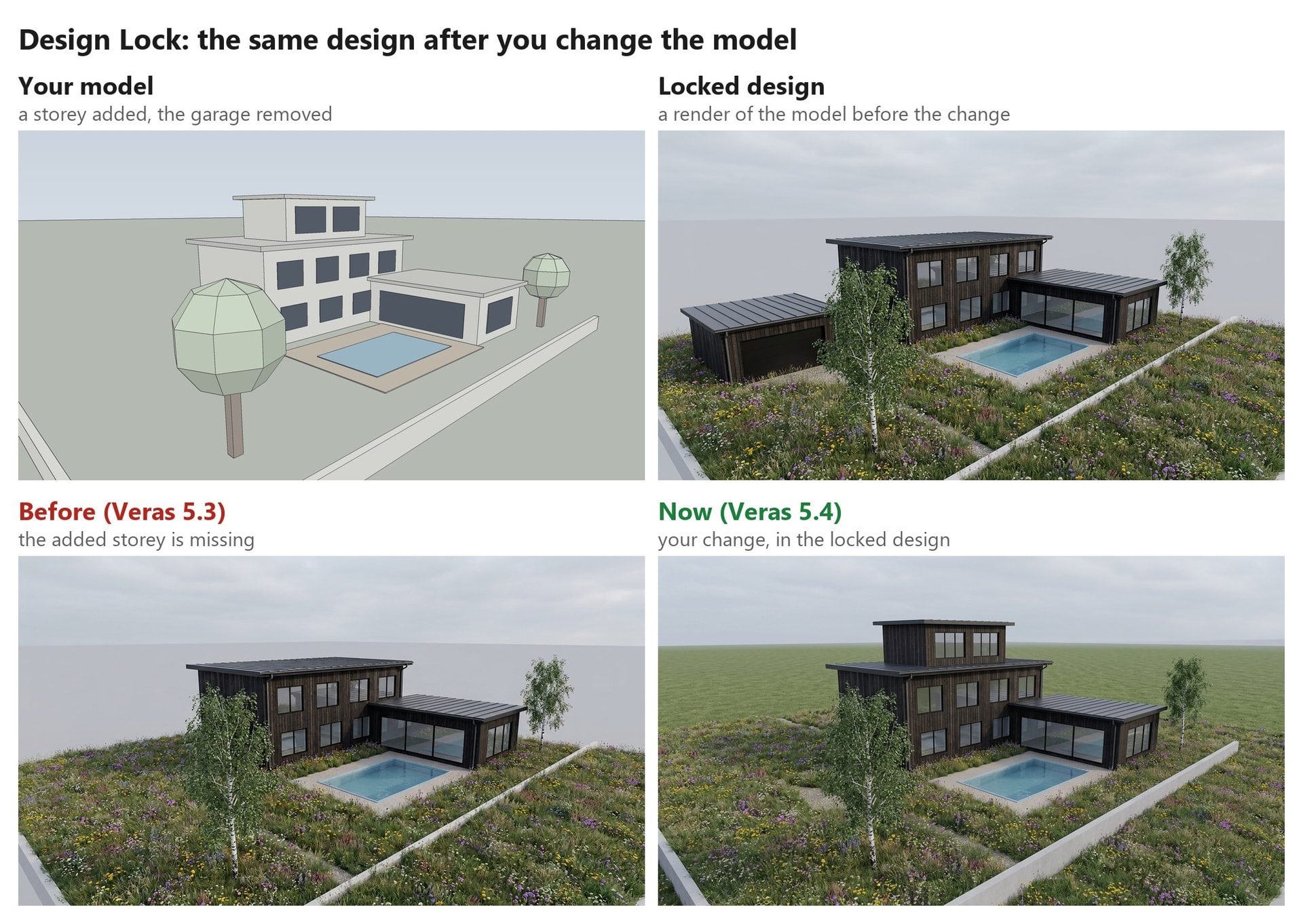
Design Lock takes the design of a render you like (its materials, colors, lighting and planting) and puts it on a new render of your model. We rebuilt it in 5.4, so the new render keeps your model’s camera angle and shapes, and no longer hands back the render you locked.
- Your view, not the locked one. Move the camera in your design app and Design Lock renders that view in the locked design. Before, it often came back at the locked render’s angle, zoomed in or out, or returned the locked render itself.
- Your model changes show up. Add a storey or take away a garage, and the new render shows the change in the same design.
- Every result is checked. Veras now compares each result with the shapes of your model before you see it, and renders again if it drifted.
- Same steps as before: in IMAGE, add the finished render under Reference Images and set its type to Design Lock. It works with the Version 7 and Version 7 Flash engines, and in the Image Generator node in NODES.
In our tests, 38 renders of two models (a textured SketchUp model and a plain massing model) on Version 7 Flash:
| Veras 5.3 | Veras 5.4 | |
|---|---|---|
| Kept your model’s camera angle | 24% | 100% |
| Matched your model’s shapes closely | 11% | 82% |
| Returned the locked render instead of your view | 32% | 0% |
| Median time per render | 24 s | 30 s |
A render takes a few seconds longer, because Veras checks it before you see it.
 MODEL Assets — Turn Any Image into 3D Models
Assets no longer needs a 3D scene to start from.
- Start from any image. Under Source, pick the render selected in your workspace, an image you upload, your design app’s view or a snapshot of the 3D Viewer
- Choose where the objects go with the new Output setting. Place in scene puts each one in your 3D model where it stands in the render, ready to bake, as before. Save to Gallery turns them into 3D models in your Gallery, with no scene needed.
- An image with no 3D camera, such as an upload or your design app’s view, saves its objects to your Gallery
- The lasso works before you detect anything. Draw around an object and press Generate, with no need to run Detect Objects first. Lasso near the image’s corners to use almost the whole image.
- Each object shows its progress until it reads Saved to Gallery. Open in Gallery shows the model in the Gallery, and Download GLB in its ⋯ menu saves it to your computer.
Generating 3D models is still free through December 31, 2026.
 The MODEL Agent’s New Message Box
The foot of the MODEL tab’s Agent pane is now one message box, like the one in NODES: the text field grows as you type, with a toolbar under it and one button in the corner.
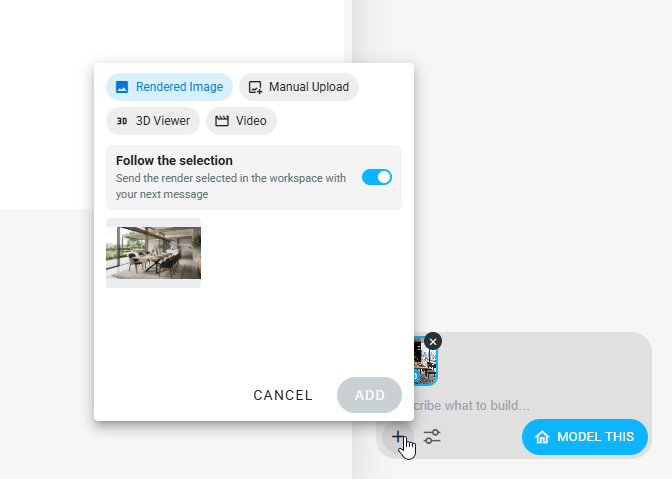
- Images ride in the message box. The SESSION tab’s Source grid is gone. What your next message carries shows as chips above the text.
- The render selected in your workspace goes along on its own, marked Auto, and follows your selection. Click its ✕ to send a message without it.
- + opens Add a Source: several workspace renders at once, an upload, your design app’s view, a snapshot of the 3D Viewer or a video. Follow the selection sends whatever render is selected with your next message.
- Paste an image into the field, or drop one on the box, to add it
- You can add new images later in the same session. An image leaves the box once it’s sent.
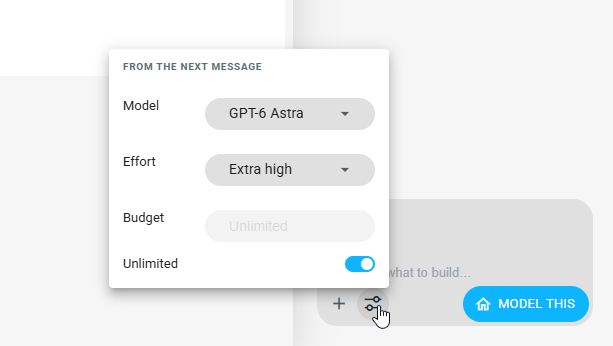
- Settings are in the message box too. The sliders button (Agent settings) holds Model, Effort and Budget, so you can switch the model or the effort between messages. A message you send while the agent works uses what you picked meanwhile.
- Bake automatically is now a toggle on the toolbar, instead of a tick on the SESSION tab. It shows in Revit, Rhino and SketchUp, and its tooltip says what it does in your design app.
 NODES — Your View, Your Models, Your Colors
- Host View node: a new input that brings your design app’s current view into a workflow as an image. Its title names your app, such as Revit View. In Revit and Rhino it captures the view fresh on every run. In SketchUp, Vectorworks and Archicad it uses the view last synced to Veras. Wire it into the Image Generator to render what you’re looking at, and the nodes below it reuse their results while the view hasn’t changed.
- Use a 3D model from your workspace: drag a 3D model from the workspace strip onto the canvas, and it becomes a 3D Model node that reads From workspace. Wire it into Bake to Revit, Bake to Rhino, Bake to SketchUp, a 3D Preview or Capture View without downloading the GLB and uploading it again. The node links to the model in your Gallery rather than holding a copy.
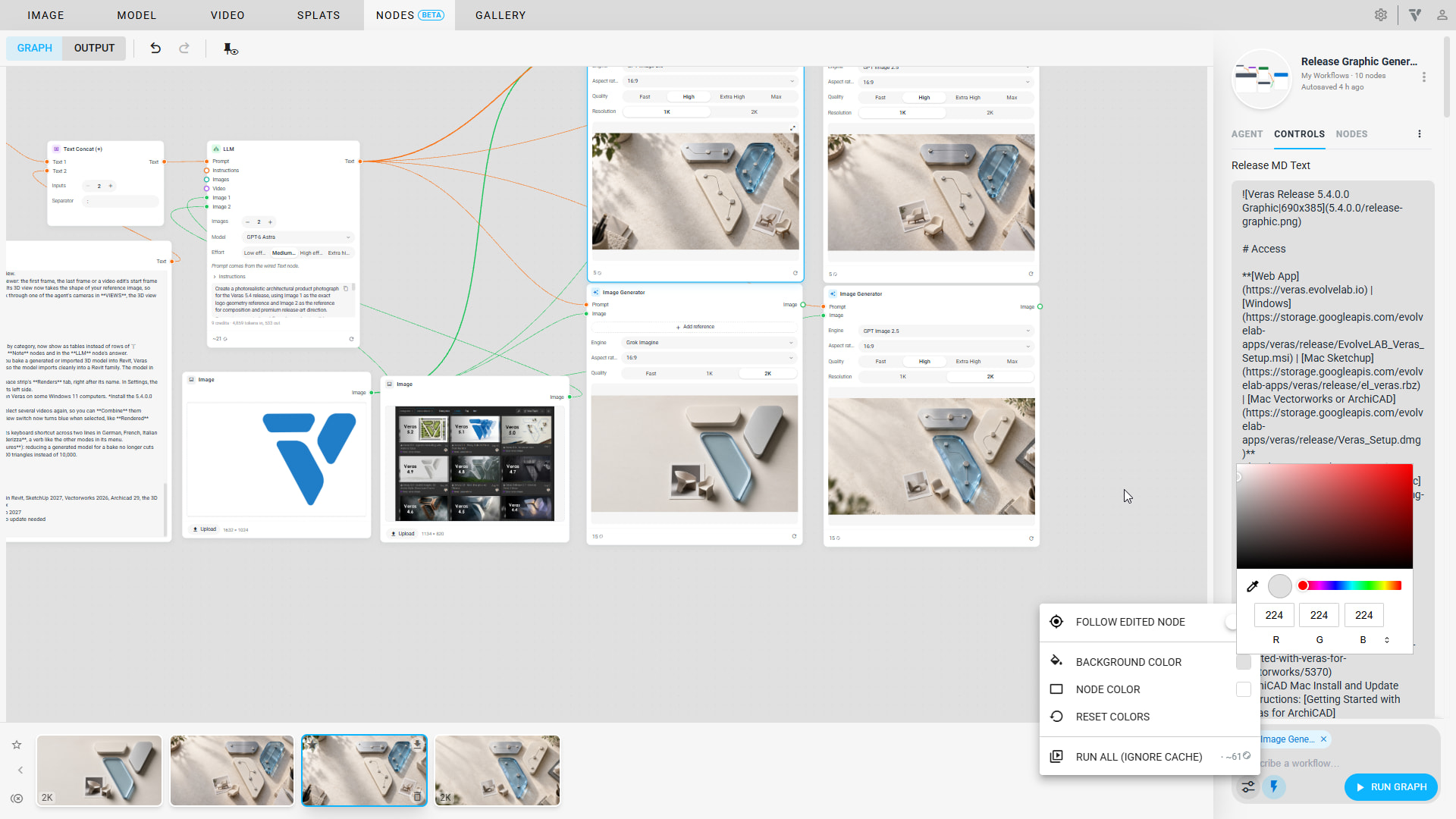
- Your own colors: the sliders button on the message box’s toolbar now holds Background color and Node color. Pick a darker canvas or tinted nodes, and the text in the nodes adjusts so it stays readable. Reset colors puts the defaults back. The colors are saved to your account, and Notes keep their own colors.
- No more lag with large uploads: a workflow with a large upload, such as a big 3D model, no longer slows down clicks, drags and pans
- Large uploads stay on this device: an upload too large to save with the workflow online (over about 32 MB) now stays on this computer, and Veras tells you once instead of trying to upload it on every save
- 3D previews inside nodes now redraw only when something changes, so an idle graph puts less load on your computer
 SketchUp 2027, Vectorworks 2026, Archicad 29
- SketchUp 2027: Veras now supports SketchUp 2027. Install the 5.4.0.0 Windows installer, or on a Mac update the Veras SketchUp plugin.
- Vectorworks 2026 (Windows): Veras now supports Vectorworks 2026 on Windows. Install the 5.4.0.0 Windows installer.
- Archicad 29 (Windows): Veras now loads in Archicad 29. Install the 5.4.0.0 Windows installer.
- The 3D Viewer in Archicad (Windows): for the first time, Veras can show your Archicad model in its 3D viewer. Choose 3D Viewer in the Source dropdown on IMAGE or VIDEO to orbit the model and render it from any angle. It works from the floor plan, a section or a layout, with no need to open Archicad’s 3D window.
- The 3D Viewer in Vectorworks 2025 and 2026 (Windows): the 3D Viewer no longer needs Enable Experimental Features. Choose 3D Viewer in the Source dropdown on IMAGE or VIDEO to orbit your Vectorworks model and render it from any angle.
NOTE: Vectorworks 2026, Archicad 29 and the 3D Viewer in Vectorworks and Archicad are for Windows in this release.
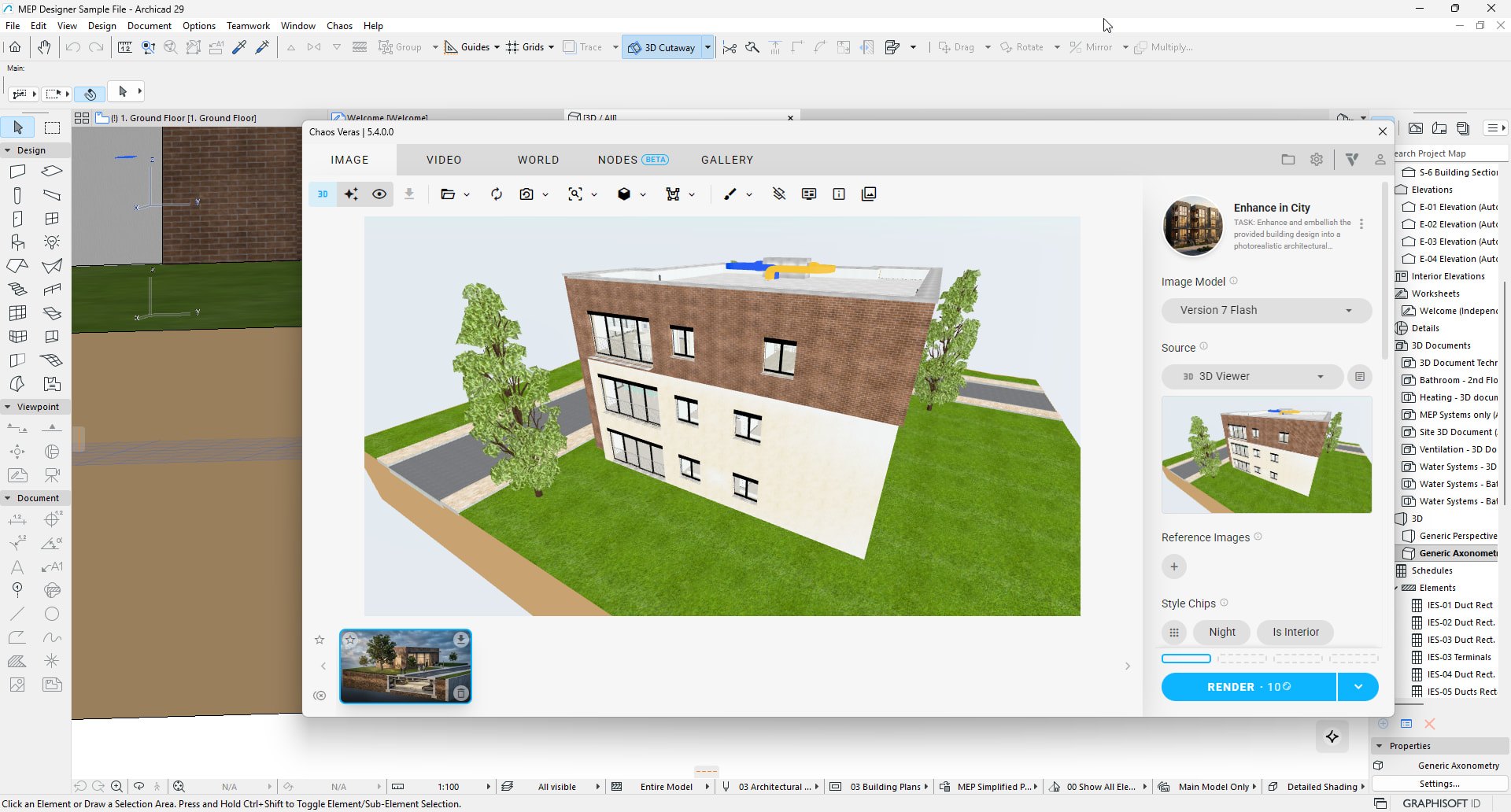
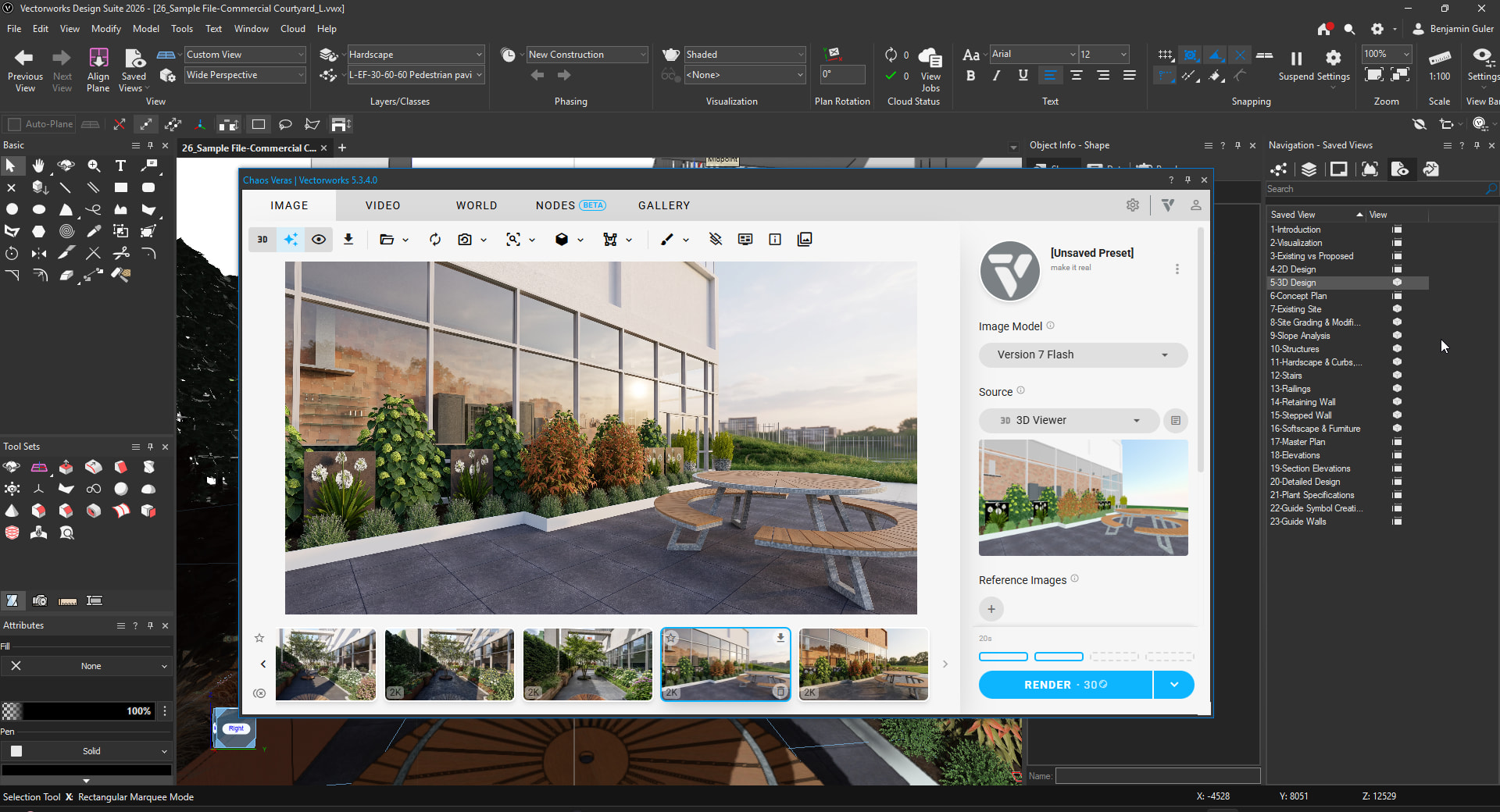
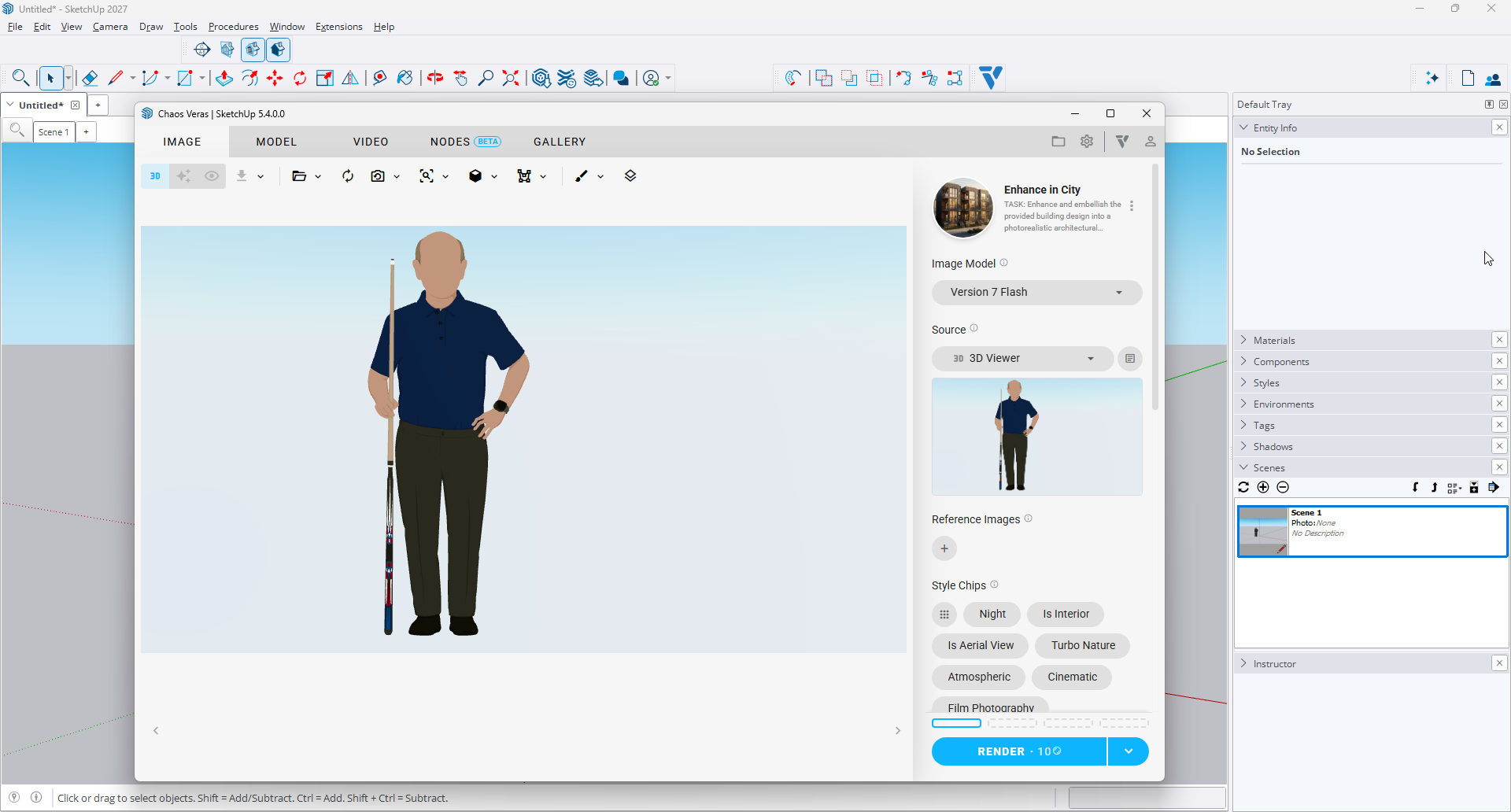
 IMAGE and VIDEO — Pick the 3D Viewer as Your Source
- The 2D | 3D toggle is gone from the IMAGE and VIDEO toolbars. To work in the 3D viewer, choose 3D Viewer in the pane’s Source dropdown. Any other source shows the 2D view.
- On VIDEO, setting any frame to 3D Viewer brings up the viewer: the first frame, the last frame or a video edit’s start frame
- MODEL keeps its 2D, 3D and Split layout buttons. Its 3D view now takes the shape of your reference image, so the model lines up with the picture beside it, and when you look through one of the agent’s cameras in VIEWS, the 3D view takes that camera’s shape.
More Improvements
- Tables in the agent’s replies, such as a count of elements by category, now show as tables instead of rows of
|characters. This works for the agents in MODEL and NODES, in Note nodes and in the LLM node’s answer. - Heavy textures no longer hold up a bake to Revit. When you bake a generated or imported 3D model into Revit, Veras now scales its textures down until they fit (about 10 MB in all), so the model imports cleanly into a Revit family. The model in Veras keeps its full textures.
- Enscape: the count of new renders now sits in the workspace strip’s Renders tab, right after its name. In Settings, the keyboard focus outline around a toggle is no longer cut off on its left side.
- Vectorworks and Archicad no longer freeze when you open Veras on some Windows 11 computers. Install the 5.4.0.0 Windows installer for this fix.
- VIDEO: Ctrl+click and Shift+click in the workspace strip select several videos again, so you can Combine them
- View switch: the host logo on the Source part of the view switch now turns blue when selected, like Rendered and Original
- Languages: the Render button’s tooltip no longer breaks its keyboard shortcut across two lines in German, French, Italian and Portuguese. In Italian, the Render button now reads Renderizza, a verb like the other modes in its menu.
- Reduce detail on bake (under Enable Experimental Features): reducing a generated model for a bake no longer cuts holes in its surface. The reduced model now keeps about 30,000 triangles instead of 10,000.
Updating
- Install the 5.4.0.0 Windows installer for Veras Workflows in Revit, SketchUp 2027, Vectorworks 2026, Archicad 29, the 3D Viewer in Archicad and the Vectorworks and Archicad freeze fix
- On a Mac, update the Veras SketchUp plugin for SketchUp 2027
- Everything else is already in Veras in every design app, with no update needed, including the new Design Lock and the 3D Viewer in Vectorworks 2025 and 2026 on Windows