Hi Glyph team,
We’re looking for help setting up Glyph to generate three separate, coordinated dimension strings that match an existing architectural dimensioning standard we use in production drawings.
The goal is for Glyph to automate the bulk of this workflow so the resulting dimensions closely match our current layout (see attached plan for reference “49”).
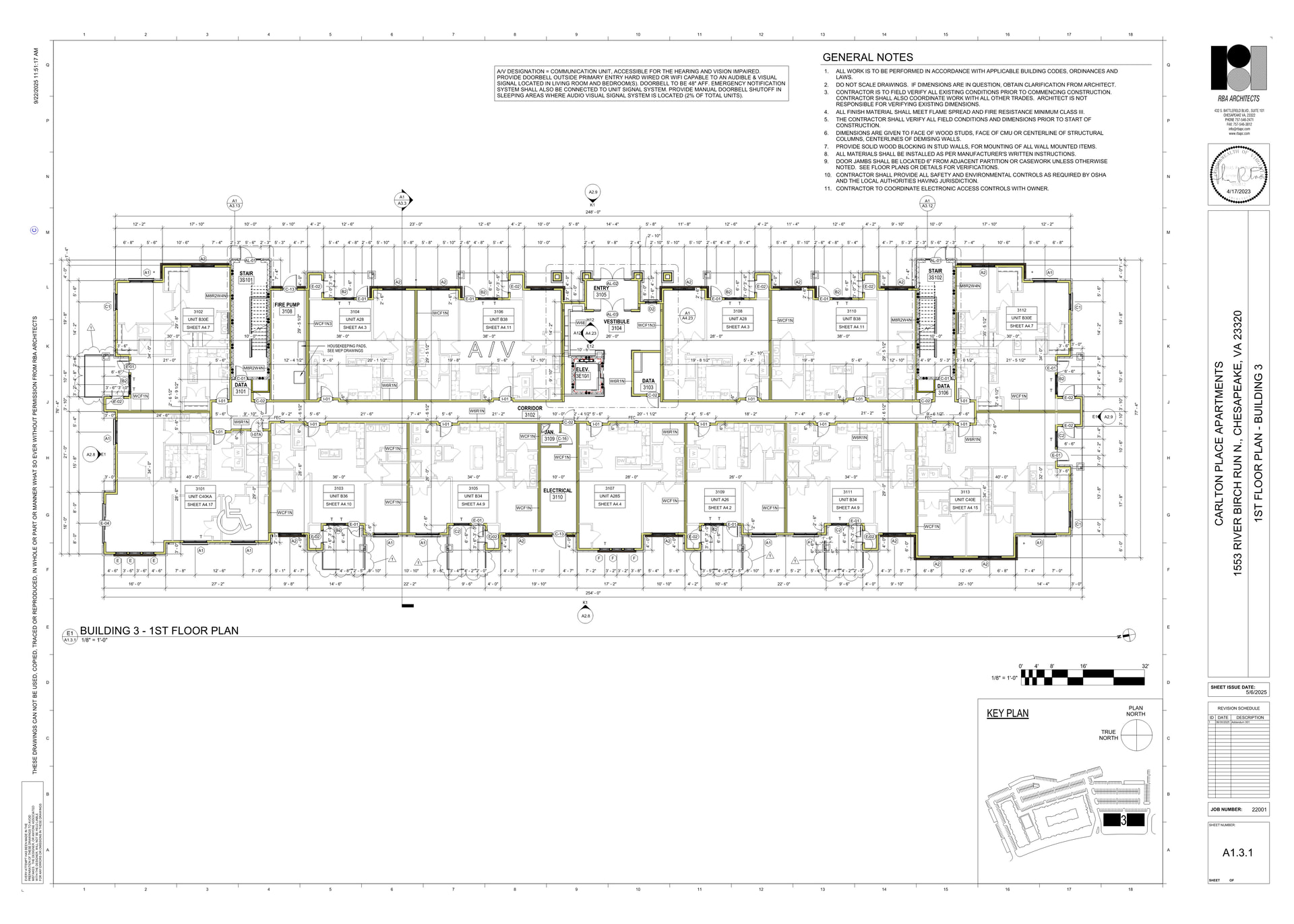
Target behavior:
-
Outermost dimension string
Controls the overall building footprint and primary extents. -
Intermediate dimension string
Controls major offsets, wings, wall jogs, and significant breaks in the building massing. -
Innermost dimension string
Controls openings, corridors, and unit-level layouts.
Key setup items we’re trying to solve:
-
Which side of the wall faces each dimension string should reference
-
Consistent offsets between each dimension string and the building
-
Ability to keep these as separate, readable strings rather than collapsing into a single chain
-
Repeatable behavior across long, multi-unit plans like the attached example
We understand Glyph isn’t perfect, and we’re not expecting a 1:1 replacement for manual cleanup. If we can reliably achieve ~80% accuracy through Glyph and handle the remainder manually, that would be a major win for our workflow.
If anyone from the team can point us toward the right task structure, reference settings, or example configurations to get this set up inside the Glyph ecosystem, we’d really appreciate it.