Turn a still render into a short cinematic clip — and learn which model to reach for.
What Video mode does
Any render, upload or prompt becomes a clip. Open the Video tab, pick a still you’ve generated, uploaded, and just ask for what you want.
You direct it with a prompt. Camera moves, weather, time of day, and entourage — all described in plain language.
Short clips, flexible quality. Settings range from 4 to 8 Seconds. with resolutions between 480p and 4K.
Four models, one Video tab
Same prompt box for all four — they differ in cost, features, and output quality. The multiplier is credit cost relative to Wan 2.2 at 720p.
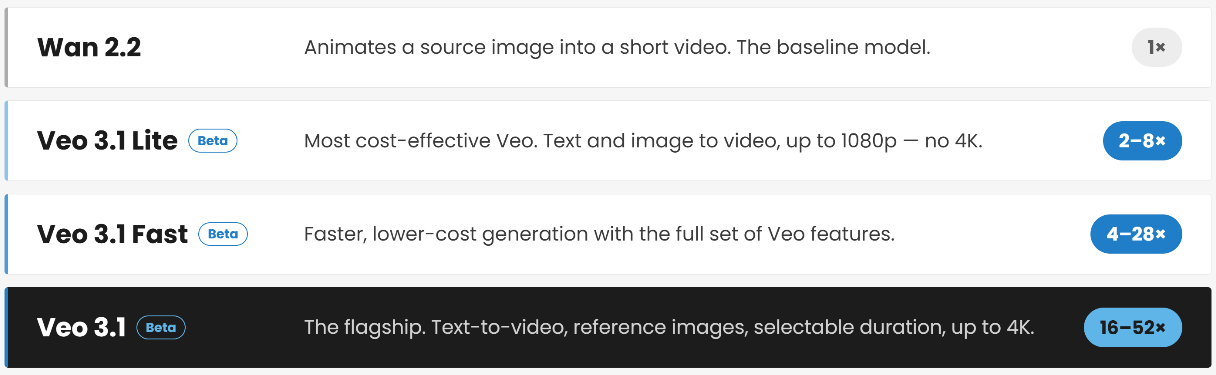
Choosing your model
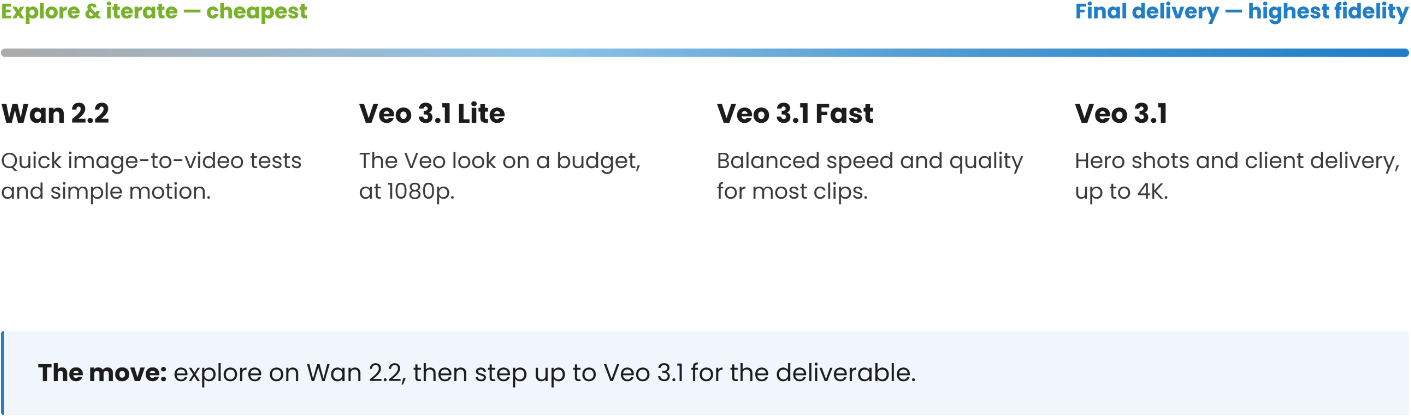
Climb the ladder only as far as the shot needs — cost and quality rise together.
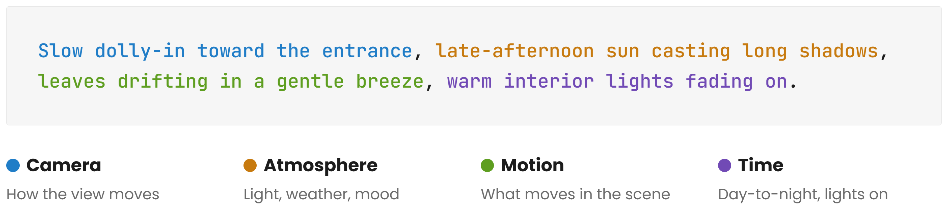
Anatomy of a video prompt
Name four things in one flowing sentence. Describe motion, not a static scene — the render already sets the look.
Four ingredients of video
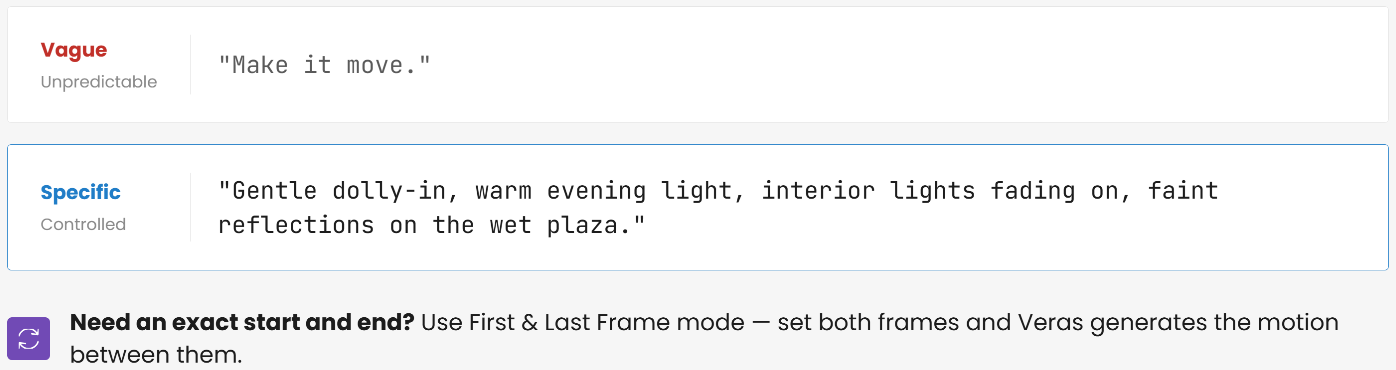
Here are some examples
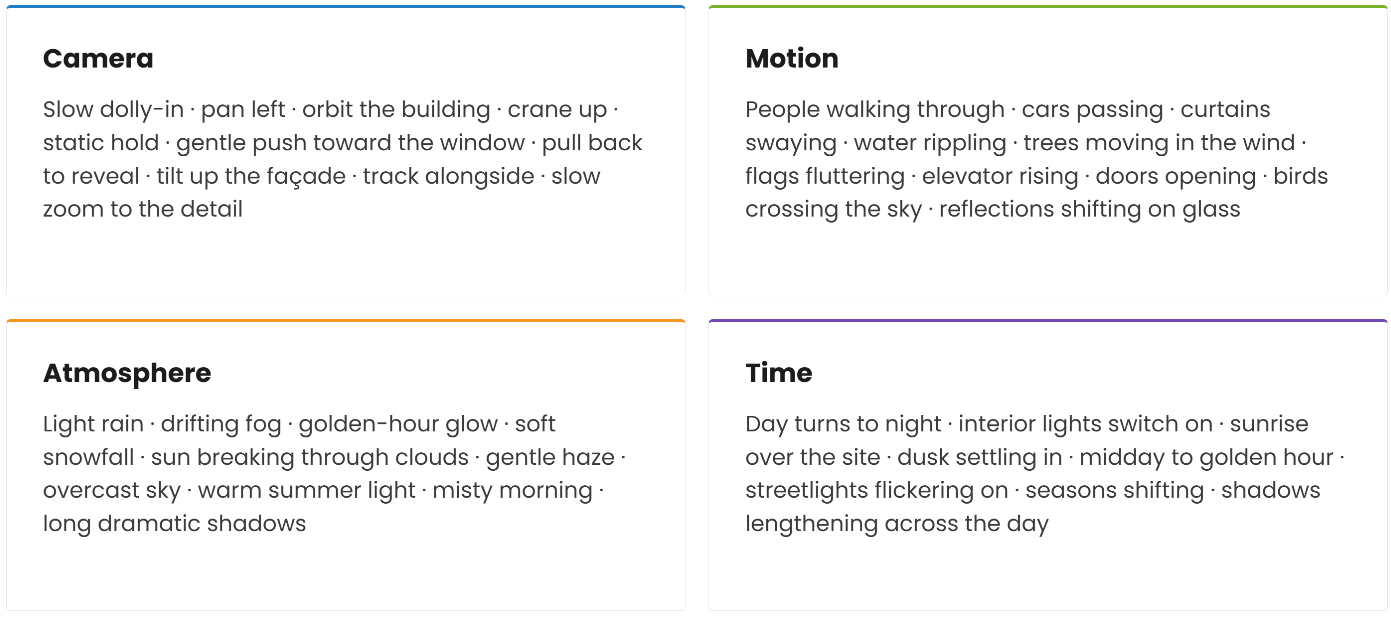
Prompts in practice
Effective prompts should be precise, direct, and clear. Negative Prompt can be used, but when possible be more specific with what you do want. Overuse of negative language will confuse the model.
Your prompting checklist
- Start from a render/upload you’re already happy with.
- Pick your model: Wan 2.2 to explore, Veo 3.1 to deliver.
- Write one sentence naming camera and motion.
- Add atmosphere and time only if the shot needs them.
- Avoid over explaining what you do not want.
- Iterate cheaply, then re-run the winner at full fidelity.