When using Veras online I want to be able to save my iterations in JPEG or PNG. Any reason why JFIF is the default format? Is there a way to get a JPEG out of the website?
@mvaleroDBVW That’s really interesting, and shouldn’t be happening - can you share a screenshot or gif with us so we can look into this? Can you also please let us know what web browser you are using?
For me, in the web version of Veras, the image renderings are saved as .jpg by default, and the video renderings are saved as .mp4 by default. I believe they should be this way for everybody.
I wonder if this is perhaps a setting with your particular browser and/or browser profile, for default file downloads?
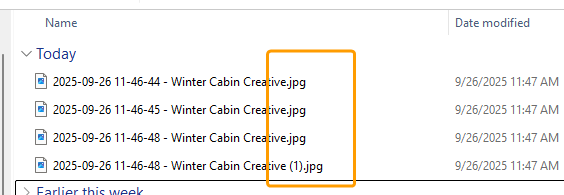
@mvaleroDBVW Here’s a gif of when i try to save images in the web versino of Veras - i use both the save button on the rendering’s thumbnail, and the save button in the top bar. For me, they all show up as .jpg files, as you can see in the explorer window on the right side of the gif (if it’s not too small!):
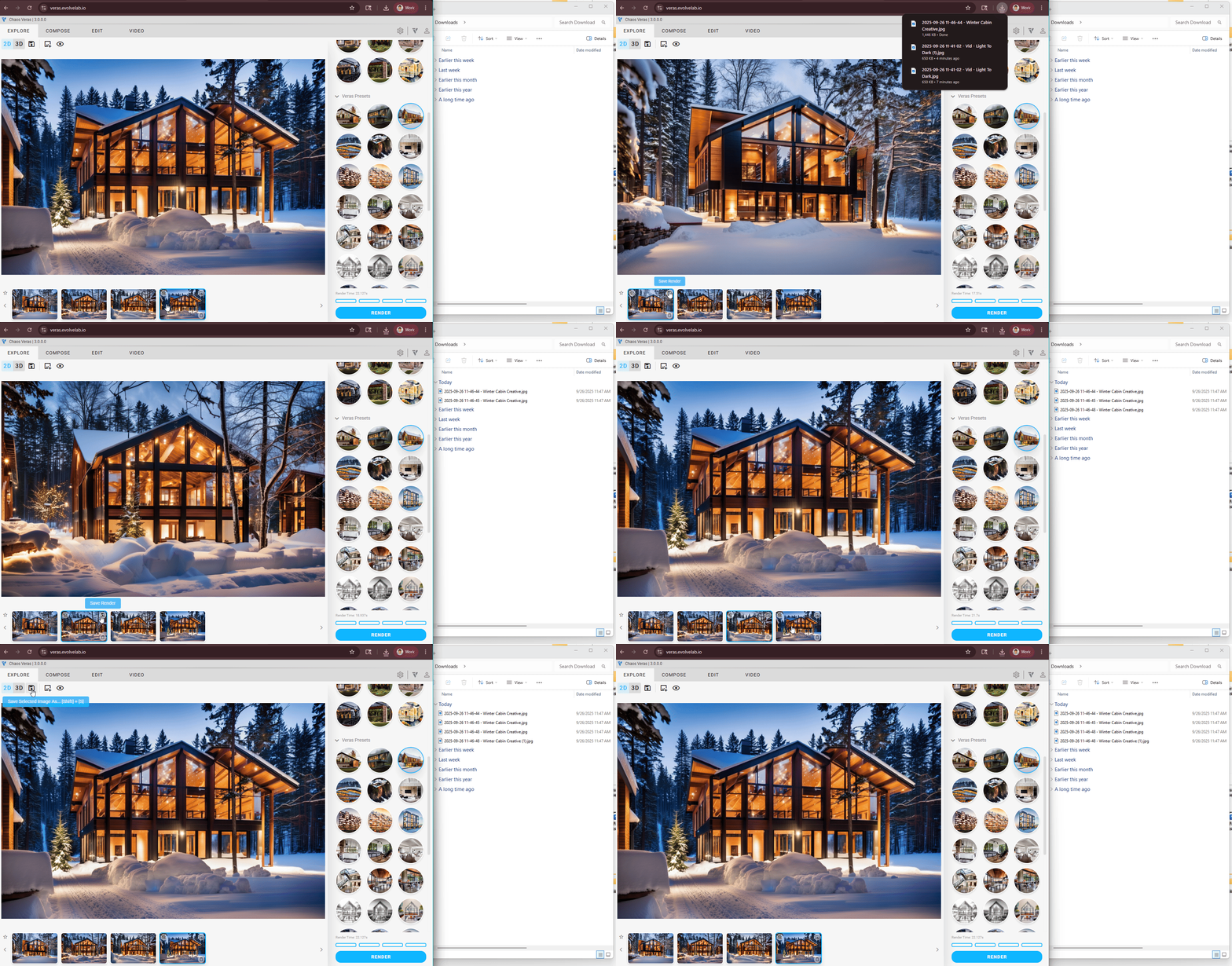
Bigger screenshot of the downloaded files:
I think @bill.allen ran into a similar issue. It turned out that it was a browser setting that would do that. You can test this by using different browsers, and you can also change the setting of your browser.
1 Like
Yes, it’s definitely saving JFIF - see screencap below
1 Like
@mvaleroDBVW Thanks for the video, super helpful, looks like Chrome?
Does this happen only when downloading images from Veras, or do you see the same .jfif issue when downloading .jpg images from other sites as well?
I don’t see a setting for it in Chrome itself, but I’m reading that this could be an issue with Windows. I found some forums talking about a Windows Photo Viewer updates that can cause this to happen.
In the mean time, I believe .jfif is a valid .jpg format. So while we look into this, if you need to you should be able to just change the filename extension to .jpg (or .jpeg) so you can use them.
On our end, we’ll look into if there are any updates we can make to convince your computer to save the images as .jpg - I think we might have a few options, but they may or may not fix the issue for you.
Here is a reddit post with a potential fix for the Windows Photo Viewer issue, BUT I don’t recommend following these instructions unless you feel technically comfortable - as they involve registry edits which can corrupt your OS should you make a mistake.:
Interesting. I just tried to replicate on my work machine that is Windows 11 and it saves as JPG. I will have to investigate this on the my home workstation that is still on Win10.
1 Like
Based on this YouTube tutorial I put together the .reg file.
Windows 10 Saving JPGs Downloaded from the Internet as JFIF’s FIX [Tutorial]
It seemed like it was the same approach as the other articles I was finding just wrapped up in a simple file to run. As always use at your own risk. For what it’s worth I did review it with ChatGPT.
Windows Registry Editor Version 5.00

[HKEY_CLASSES_ROOT\MIME\Database\Content Type\image/jpeg]
"AutoplayContentTypeHandler"="PicturesContentHandler"
"CLSID"="{25336920-03F9-11cf-8FD0-00AA00686F13}"
"Extension"=".jpg"
"Image Filter CLSID"="{607fd4e8-0a03-11d1-ab1d-00c04fc9b304}"

[HKEY_CLASSES_ROOT\MIME\Database\Content Type\image/jpeg\Bits]
"0"=hex:02,00,00,00,ff,ff,ff,d8
Edit: This could also just fix itself if you update to Windows 11. Which honestly is a good idea from a security perspective because Windows 10 support ends on October 14, 2025. Which will mean no more security updates from MS.
@mvaleroDBVW FYI - We (as in @Dave) just fixed another bug, but we think it may also resolve this bug.
It’s not released yet (current version is 3.0.2.0), but it will be included with our next update (3.0.2.1 or highter)
So as soon as you see a newer version released, please give it a try and let us know if it fixes your JFIF issue.
Thanks,